
how to use a controller on epic games launcher is mostly about two things: whether Epic (or the game) actually supports controllers, and whether Windows is seeing your gamepad correctly.
If you have a controller plugged in but Epic Games Launcher feels “keyboard-only,” you’re not imagining it. Epic itself is not a full controller-first platform in the same way a console UI is, and many games handle controller support differently. That mismatch is why one game works instantly and the next one ignores your inputs.
This guide walks through the practical setups that usually solve it on a U.S. Windows PC: wired vs Bluetooth pairing, how to confirm the controller is detected, when to use Steam as a controller layer, and the common conflicts that make inputs double, drift, or disappear.
Before you start: what Epic supports (and what it doesn’t)
Epic Games Launcher is mainly a storefront and launcher. Controller support typically depends on the game you launch, not the launcher UI itself. That sounds picky, but it matters when troubleshooting because the fix might be inside the game’s settings, not Epic.
- Many modern games support Xbox-style controllers natively through XInput on Windows, so they tend to work with minimal effort.
- PlayStation controllers may work, but some games need Steam Input or a mapping tool to translate inputs.
- Nintendo Switch Pro controllers can work on Windows, but behavior varies by game and driver support.
According to Microsoft Support, Windows includes built-in support for Xbox controllers, including Bluetooth pairing steps and basic troubleshooting, which is why Xbox pads are usually the least fussy option on PC.
Quick compatibility check (save yourself 30 minutes)
Before changing settings, check which category you’re in. Most “it doesn’t work” cases fall into one of these buckets.
Fast self-check list
- Does your controller work in another PC game? If yes, Windows likely sees it fine, focus on the specific Epic game.
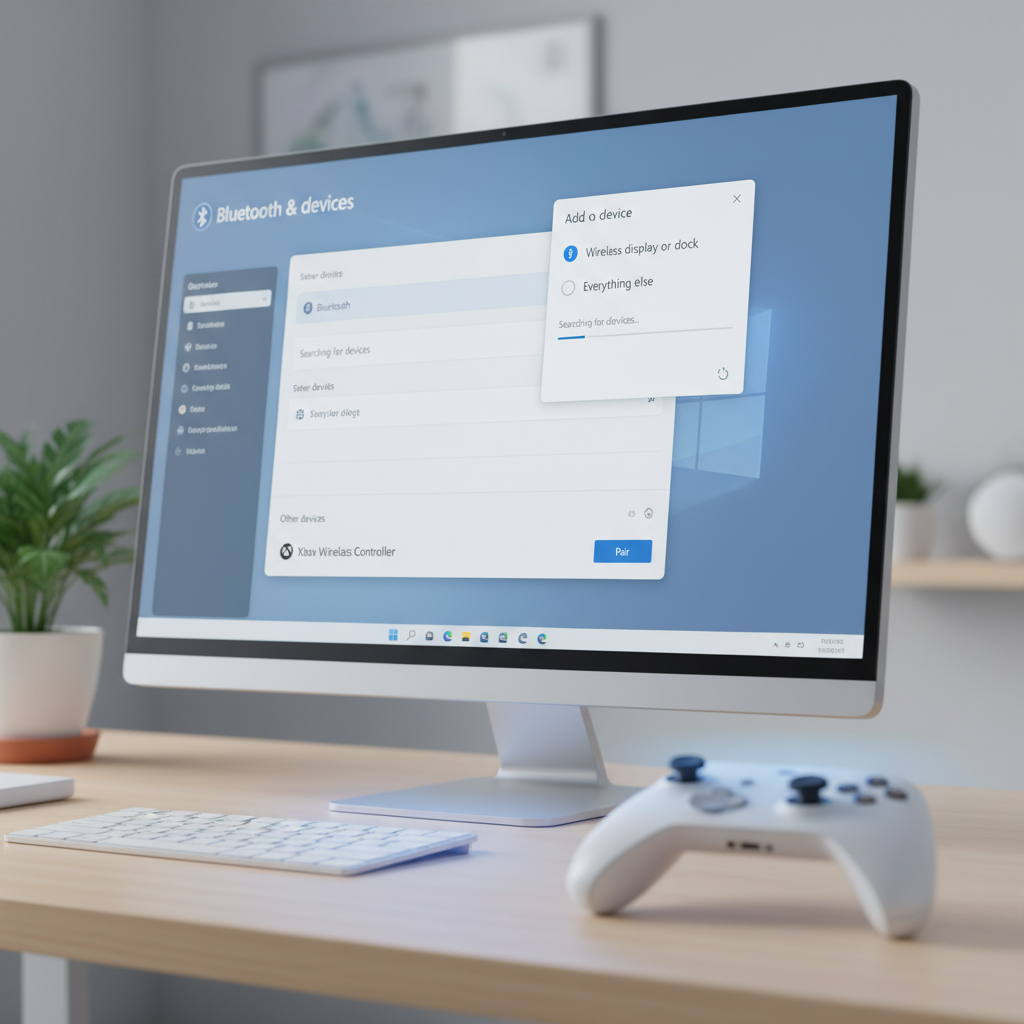
- Does it show up in Windows? Open Settings > Bluetooth & devices and look for the controller.
- Is the game known to support controllers? Some PC titles are keyboard/mouse-first or only partially support gamepads.
- Are you running Steam at the same time? Steam Input can help, but it can also create double inputs if configured poorly.
If you’re trying to learn how to use a controller on epic games launcher for just one stubborn title, keep that in mind: a “global fix” sometimes makes other games worse.
Connect your controller the reliable way (wired vs Bluetooth)
Start with the simplest stable connection, then move to wireless. When you’re troubleshooting, wired removes a lot of variables.
Wired setup (recommended for troubleshooting)
- Use a known-good USB cable (data cable, not charge-only).
- Plug directly into the PC, not a flaky USB hub.
- Wait a few seconds, then confirm it appears in Windows devices.
Bluetooth setup (when you want couch play)
- On Windows, go to Settings > Bluetooth & devices > Add device.
- Put the controller into pairing mode (method depends on model).
- Pair it, then confirm it stays connected for a minute or two.
Bluetooth can be perfect or weird depending on the adapter, interference, and controller firmware. If inputs drop randomly, test wired again to separate “game issue” from “wireless issue.”
Make sure Windows detects inputs (the part people skip)
Epic can’t pass controller input to a game if Windows isn’t receiving it correctly. You don’t need fancy tools to validate this.
Simple ways to confirm detection
- Device list check: Controller appears under Bluetooth & devices (or USB devices).
- Game Controllers panel: Search Windows for “Set up USB game controllers,” pick your device, then test buttons/axes.
- In-game prompt check: Many titles swap UI prompts (A/B/X/Y vs keyboard keys) when they detect a controller.
If buttons don’t register in the Windows controller test, fix that first (cable, drivers, different USB port, re-pair Bluetooth). That step solves a surprising share of “how to use a controller on epic games launcher” searches because the launcher isn’t the real problem.
Game-by-game setup inside Epic titles (where controller support really lives)
Once the controller is visible to Windows, launch the game from Epic and look for controller-related options. Different engines label these settings differently, but the intent is the same.
Settings to look for
- Input method or Control scheme (Controller vs Keyboard/Mouse)
- Vibration, dead zones, stick sensitivity (helpful for drift and “oversteer”)
- Button mapping or rebind controls
- Disable mouse acceleration or related options if aim feels inconsistent after switching
One practical tip: if the game supports it, move your left stick on the main menu. Some titles don’t “switch” to controller mode until they see a controller input after launch.
When you should add Epic games to Steam (and how to avoid double-input)
If you use a DualShock, DualSense, or Switch Pro controller and a game ignores it, Steam Input often acts as a compatibility layer. This is a common workaround because Steam can translate non‑XInput controllers into something many games understand.
How to use Steam Input with Epic games (typical workflow)
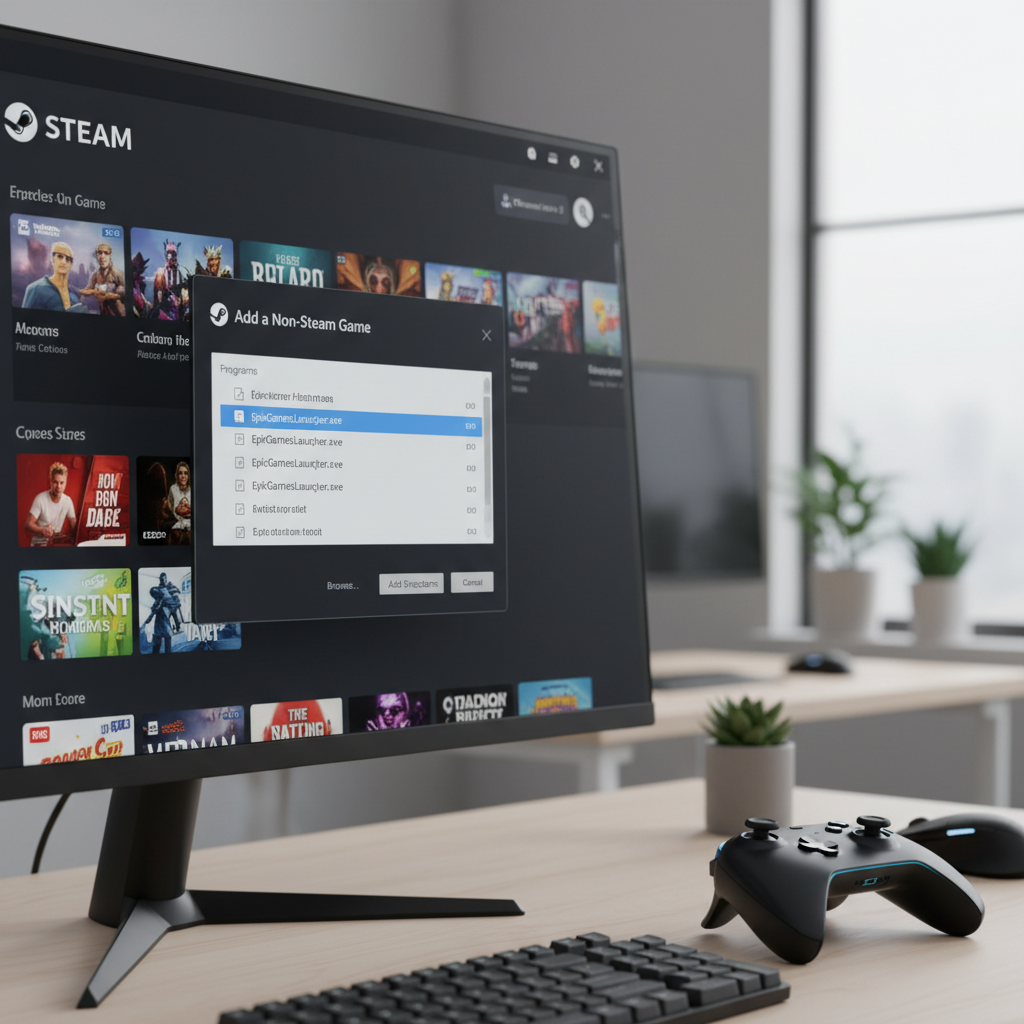
- Open Steam, go to Library, click Add a Game > Add a Non-Steam Game.
- Select the Epic game executable, or add Epic Games Launcher if needed.
- In Steam, open the game’s Properties and review Controller settings.
- Launch the game from Steam so Steam Input stays active.
Common conflict: double input or “ghost” inputs
- If the game already supports your controller natively, Steam Input can cause double button presses.
- Fix usually means setting Steam’s controller option to Disable Steam Input for that game, or the opposite if the game needs translation.
According to Valve’s official Steam Support documentation, Steam Input can be enabled per-game, which is helpful because you can keep one title on translation while leaving another untouched.
Troubleshooting table: symptoms and the fixes that usually work
Here’s the quick reference I wish more guides included. Pick the symptom that matches what you see, then try the smallest fix first.
| What you see | Likely cause | What to try |
|---|---|---|
| Controller works in Windows, not in one Epic game | Game lacks support or needs in-game toggle | Check game settings for input method, launch and press a stick/button on menu |
| No response anywhere | Cable/pairing/driver issue | Try a different USB port/cable, re-pair Bluetooth, confirm in Game Controllers test |
| Buttons feel “wrong” (A/B swapped, prompts don’t match) | Controller layout mismatch | Use in-game remap, or Steam Input layout templates |
| Double inputs (menu skips two items) | Steam Input + native input both active | Disable Steam Input per-game, or disable other mapping tools |
| Stick drift or camera slowly moving | Dead zone too low or hardware drift | Increase dead zone in game, test in Windows, consider controller calibration/repair |
| Bluetooth lag or random disconnects | Wireless interference/adapter issues | Use wired, move closer, change USB BT adapter port, update adapter drivers |
Key takeaways (so you can stop tinkering)
- Epic Games Launcher is not the main controller “switch”; the game usually is.
- Confirm Windows input first, otherwise every other fix becomes guesswork.
- Steam Input is a tool, not a default setting; it can solve support gaps but also cause double-input.
- Wired testing saves time because it removes Bluetooth variables.
If you want the most repeatable approach, do it in this order: get the controller stable in Windows, test a wired connection, validate the game’s controller settings, then add Steam Input only if the game needs translation.
Conclusion: a practical “do this next” checklist
how to use a controller on epic games launcher becomes straightforward once you treat it like a chain: Windows detection, then game support, then optional translation layers. When the chain breaks, the controller feels “ignored.”
Action steps that tend to work in real life: plug in via USB and verify inputs in Windows, launch the game and look for controller mode or remapping, then only bring in Steam Input if you’re on a PlayStation or Switch controller and the game won’t cooperate.
FAQ
Why does my controller work on Steam but not on Epic Games Launcher?
Steam often applies Steam Input automatically, translating your controller into a format games accept. Epic usually doesn’t add that translation layer, so the same controller may need native support or a separate mapping approach.
Can I use a PS5 DualSense controller on Epic Games games?
Often yes, but it depends on the specific game. Some titles recognize it directly, others behave better if you launch the game through Steam with Steam Input enabled, especially when prompts or button mapping look off.
Do I need DS4Windows or other third-party tools?
Sometimes, especially for older games that only understand XInput. Still, try native support and Steam Input first, because stacking multiple tools is a common reason for double inputs and weird mappings.
Why is my controller connected but the game still shows keyboard prompts?
Many games switch prompts only after they receive a controller input, and some keep keyboard prompts if the mouse moves. Try pressing a stick on the menu, then avoid touching the mouse to see if the UI flips.
How do I fix controller drift in Epic games?
Start by increasing the in-game dead zone. If drift shows up in the Windows controller test too, it may be hardware wear; cleaning or repair might help, and for persistent issues it can be worth consulting the manufacturer’s support options.
Will a Nintendo Switch Pro Controller work with Epic Games?
It can, but support varies a lot by game. Many players get the most consistent results by using Steam Input as a compatibility layer, then customizing the button layout so prompts feel natural.
Why do my buttons register twice when I play an Epic game?
This usually happens when both native controller support and an input mapper are active at the same time. Disable Steam Input for that specific game, or turn off any third-party mapping app, then test again.
If you want a simpler setup
If you’re trying to get controller play working across multiple Epic titles without redoing settings every time, it may be worth standardizing on one controller type and one approach, either native XInput with an Xbox controller or Steam Input as a single translation layer for non‑Xbox pads, so your setup stays predictable.