
how to backup switch game saves to cloud comes down to two things: having Nintendo Switch Online, and knowing which games support cloud saves (because not all of them do).
If you have hundreds of hours in Animal Crossing, a long RPG run, or a kid’s profile full of progress, losing saves is one of those “it can’t happen to me” problems… until it does. Console replacement, accidental deletion, repair visits, even a second Switch in the house can turn saves into a headache.
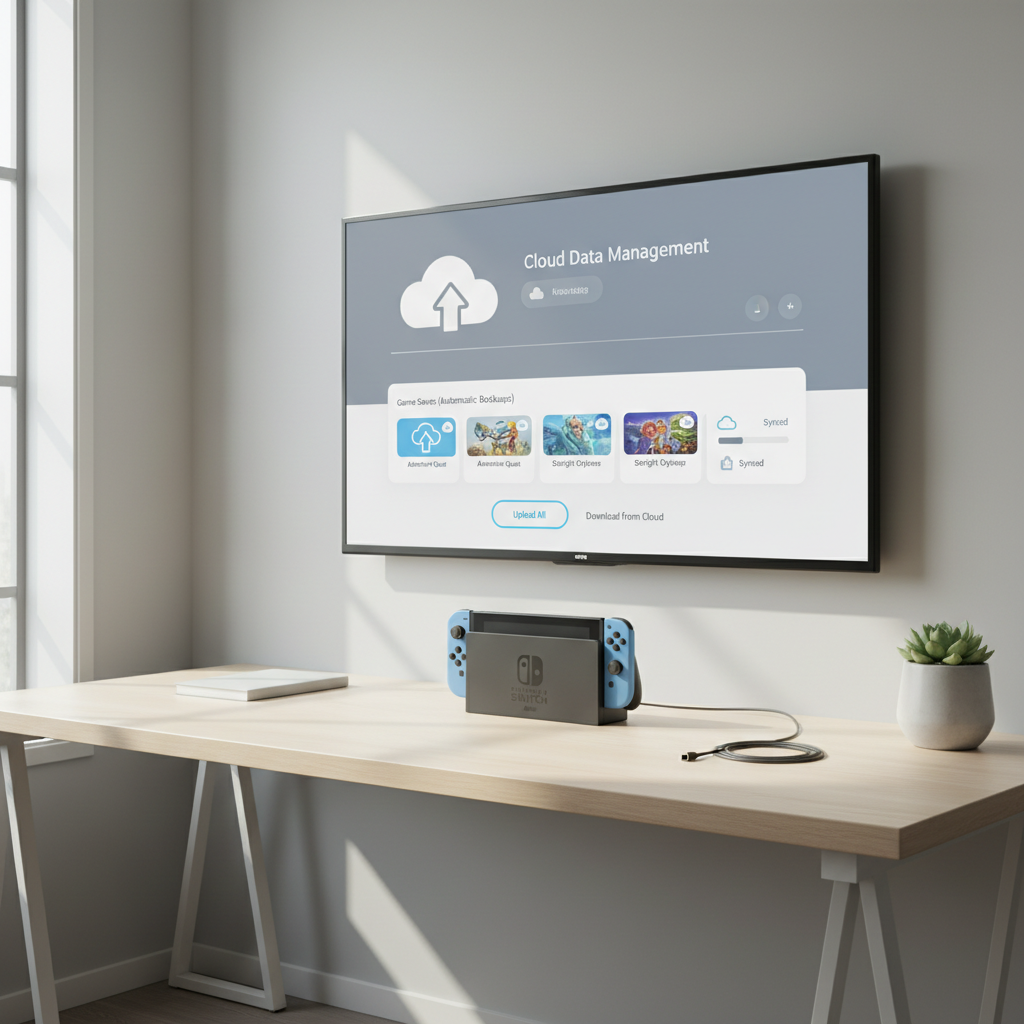
This guide walks you through what cloud backup can and can’t do on Switch, how to turn it on the right way, how to verify it actually uploaded, and what to do for the few big games that don’t allow cloud save backups.
What “cloud backup” means on Nintendo Switch (and what it doesn’t)
On Switch, “cloud backups” usually means Save Data Cloud, a Nintendo Switch Online feature that uploads supported game save data to Nintendo’s servers.
That’s different from other data you might care about:
- Screenshots and videos are stored on the console or microSD card, not in Save Data Cloud.
- Game downloads can be re-downloaded from the eShop, but that does not restore saves by itself.
- Some titles block cloud saves entirely, which is the most common surprise.
According to Nintendo Support, Save Data Cloud is included with an active Nintendo Switch Online membership, and only works for compatible software.
Quick compatibility check: does your game support cloud saves?
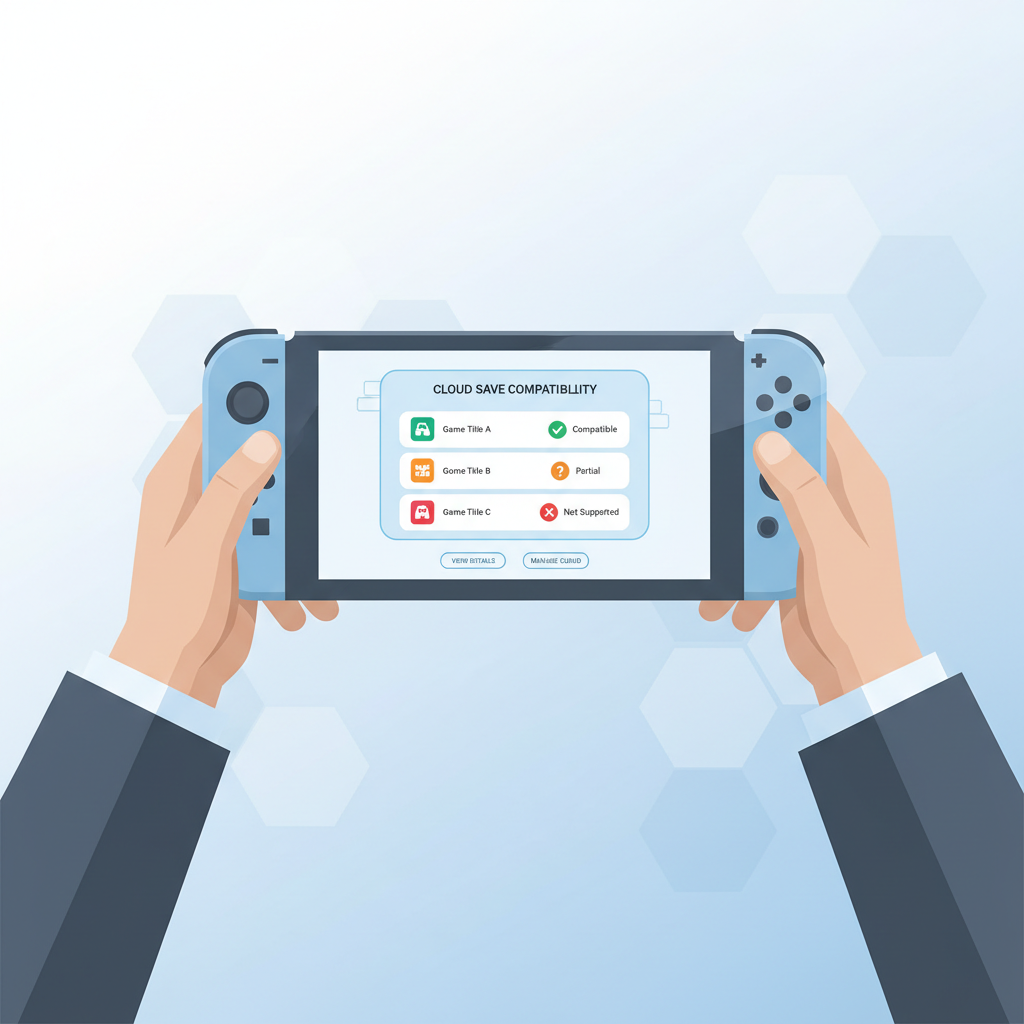
Before you spend time troubleshooting, confirm whether the specific game even allows cloud backup. This matters a lot because Nintendo’s system can be working perfectly and still never upload a save for an unsupported title.
Here’s a practical way to think about it:
- If you see a cloud icon and “Supported” in the game’s Save Data Cloud screen, you’re in good shape.
- If the game shows “Not Supported,” you’ll need a different plan (we cover options below).
Cloud save support at a glance (common examples)
| Game / Save type | Typical cloud save support | What to do instead |
|---|---|---|
| Most first/third-party games | Supported | Enable Save Data Cloud + verify uploads |
| Animal Crossing: New Horizons | Not via standard cloud saves | Use the island backup/restore feature tied to Nintendo account |
| Some competitive/online titles | Often not supported (varies) | Check publisher’s system, sometimes progress is server-side |
| Account-based games (server progress) | Cloud saves may be irrelevant | Confirm account login and linking |
How to enable Switch cloud saves (step-by-step)
If your goal is how to backup switch game saves to cloud reliably, don’t skip the “verification” part. Turning it on once is easy; confirming it uploaded is what prevents regret later.
Step 1: Confirm Nintendo Switch Online is active on the right account
- Cloud saves attach to the Nintendo Account used on that user profile.
- If your household has multiple users, make sure the profile with the actual save progress has the membership coverage (individual plan or family plan).
Step 2: Turn on automatic save-data backup
- Open System Settings → Data Management → Save Data Cloud.
- Select your user profile.
- Pick a game → enable Automatic Backups (wording can vary slightly by system version).
Tip: If you play in handheld mode and rarely connect online, automatic backups may wait until the console gets a stable connection.
Step 3: Force a manual upload when you want certainty
- In the same Save Data Cloud menu, select the game.
- Choose Back Up Save Data or an equivalent manual option.
- Wait for the status to show the latest backup time.
Self-check checklist: is your cloud backup actually working?
A lot of “cloud save problems” are just one missing condition. Run this quick list when backups don’t appear.
- Membership: Nintendo Switch Online is active on the user profile that owns the save.
- Internet: the console connects without captive portals (hotel Wi‑Fi sign-in screens can block uploads).
- Game support: the title is marked as supported for Save Data Cloud.
- Same profile: you are checking cloud status under the same Switch user who plays the game.
- Recent play: some games upload after you exit the software, not mid-session.
According to Nintendo Support, cloud backups may not update instantly in every situation, and compatibility depends on the software.
Restoring saves from the cloud (new Switch, repaired Switch, or second console)
Backing up is only half of how to backup switch game saves to cloud. The other half is knowing how restores behave, especially if you have two consoles.
Restore on the same user profile
- Sign into the same Nintendo Account on the new or repaired console.
- Go to System Settings → Data Management → Save Data Cloud.
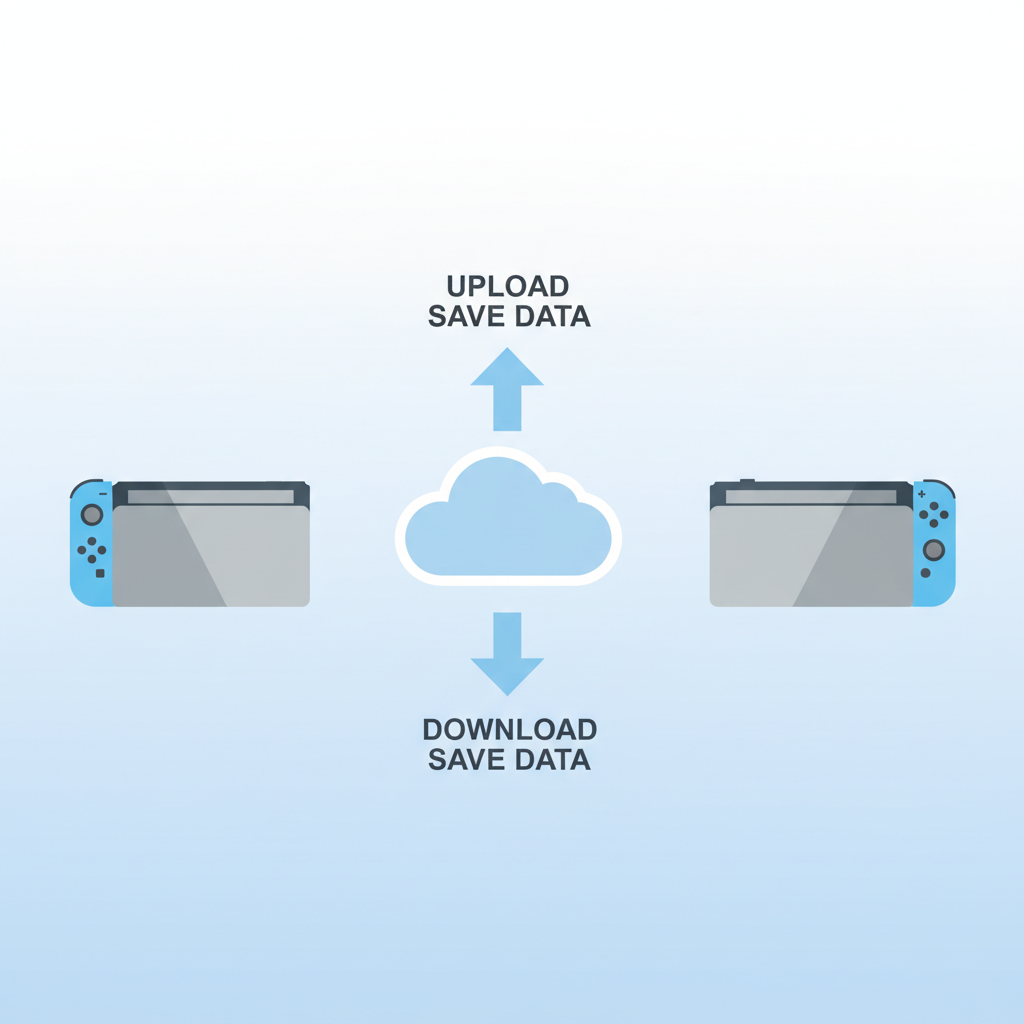
- Select the game → choose Download Save Data.
Two consoles warning: cloud saves are not always “merge-friendly”
If you play the same game on two Switch consoles, you can accidentally overwrite progress by downloading an older save or uploading from the “wrong” console.
- Pick one primary play device for long sessions.
- Before switching consoles, manually back up on the first console, then download on the second.
- If something looks off, stop and review timestamps before you press any overwrite prompt.
What to do when a game does not support cloud saves
This is where many guides get vague. If a title blocks Save Data Cloud, you can’t force it through the Nintendo menu, and random “backup apps” won’t help on a stock Switch.
Option A: Use the game’s built-in backup system (when available)
Some games offer a separate backup or transfer flow. For example, certain titles may tie progress to an account or have their own island/character restore process. Follow the game’s in-game settings and the publisher’s support article, not just the Switch system menus.
Option B: Check if progress is stored server-side
For some online-focused games, your progress might live on the game’s servers once you link an account. In that case, reinstalling the game and signing in restores progress, but it’s still worth confirming what is and isn’t stored online.
Option C: Plan for console transfer instead of cloud restore
If you still have access to the old console, a system transfer can sometimes move data that cloud saves won’t cover. This is not a guarantee for every title, and timing matters if the old console is failing, but it’s often the most realistic path.
Common mistakes that cause save-loss (and how to avoid them)
- Assuming every game supports cloud saves: always check the Save Data Cloud screen for that specific title.
- Mixing up user profiles: saves are tied to the Switch user; the “right account” matters more than the console itself.
- Relying on microSD for saves: microSD is great for screenshots and downloads, but game saves generally live in system memory.
- Not verifying timestamps: before downloading or overwriting, compare backup dates so you don’t roll back progress.
- Waiting until the console is dead: if the device shows signs of storage or boot issues, do a manual backup sooner rather than later.
When it’s worth contacting support (or the game publisher)
If your cloud backup shows an error, your save disappears, or you’re dealing with a non-supported title and a broken console, it’s usually time to stop experimenting. Repeated restores and overwrites can make recovery harder.
- Contact Nintendo Support when cloud status, membership recognition, or console transfer tools fail.
- Contact the game publisher when the title uses a special backup system or server-based progress that doesn’t match what you see.
According to Nintendo Support, cloud save availability and restore behavior depend on software compatibility and account status, so support may ask for the game title, user profile, and error codes.
Key takeaways and a simple “do this today” plan
If you only do three things, do these: confirm the game supports cloud saves, enable automatic backups on the correct profile, then run one manual upload so you can see a current timestamp.
- Today: open Save Data Cloud, check your top 5 played games, and verify last backup time.
- Before switching consoles: manual backup on Console A, then download on Console B.
If you’re stuck on a game that blocks cloud saves, focus on the game’s own backup tools or a transfer plan while the old console still works.
FAQ
Do I need Nintendo Switch Online to back up saves to the cloud?
In most cases, yes. Save Data Cloud is part of Nintendo Switch Online, and without an active membership you typically won’t get cloud save backups for supported games.
Can I back up Switch saves to Google Drive or iCloud instead?
Not through the standard Switch system features. The built-in cloud option is Nintendo’s Save Data Cloud, and it doesn’t export saves as files you can upload to other services.
Why does my Switch say “Not Supported” for cloud saves?
That usually means the game publisher chose not to allow Save Data Cloud for that title. At that point, look for an in-game backup/restore feature or publisher account sync, if available.
How often does the Switch back up saves automatically?
It varies by game and play pattern, but many backups happen after gameplay when the console is online. If you want certainty before travel or a console swap, a manual backup is the safer move.
Will cloud saves transfer everything, including DLC and screenshots?
No. Cloud saves cover supported save data. DLC can be re-downloaded from the eShop, and screenshots/videos are separate files stored on the console or microSD card.
If I have two Switch consoles, can I keep the same save synced on both?
Sometimes, but it takes discipline. Cloud saves can help, yet you still need to watch timestamps and avoid playing offline on one console for long stretches, because that’s when conflicts and rollbacks happen.
What’s the safest way to restore saves to a new Switch?
Sign into the same Nintendo Account, confirm the same user profile is used, then download saves per game inside Save Data Cloud. If prompts warn about overwriting, stop and compare backup times.
If you’re trying to set up how to backup switch game saves to cloud for a family with multiple profiles and consoles, it may be worth writing down which Nintendo Account maps to which user and doing a quick monthly backup check so nothing quietly falls behind.