
how to reduce input lag on wireless mouse usually comes down to three things you can actually control: the wireless link (signal quality), the mouse/PC settings (polling, power saving), and what’s interfering (USB 3.0 noise, crowded 2.4 GHz, bad hubs). If your cursor feels “floaty,” clicks land late, or tracking stutters, you’re not imagining it, wireless lag tends to show up under load or in messy RF environments.
The frustrating part is that many “fixes” online mix real latency causes with placebo tweaks. Updating everything is fine, but if your receiver is plugged into the back of a PC under a desk, next to a USB 3.0 port, you can spend hours in settings and still feel delay.
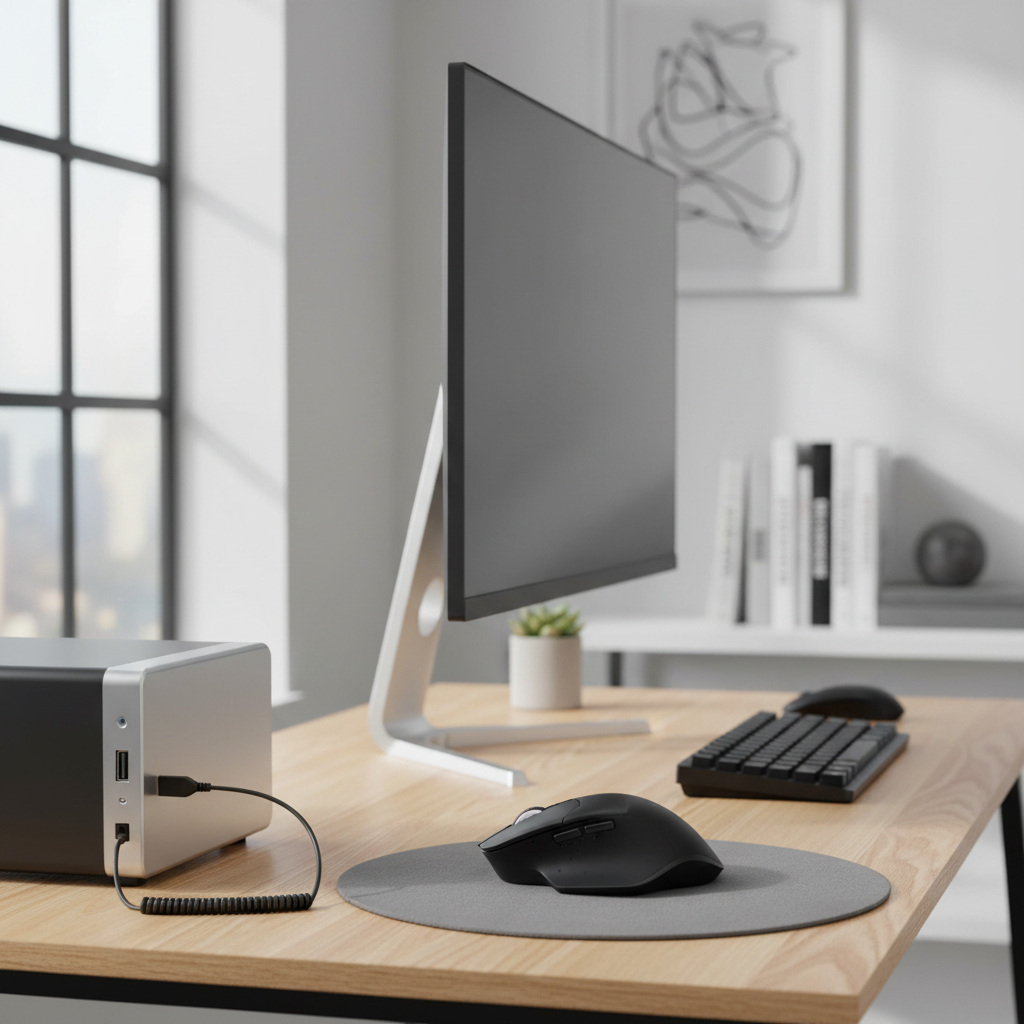
This guide focuses on the practical stuff that usually moves the needle: optimizing receiver placement, choosing the right connection mode, dialing in polling rate, and avoiding the common traps that quietly add delay.
What “input lag” on a wireless mouse actually is
Wireless mouse lag isn’t one single delay, it’s the total time between moving the mouse and seeing the cursor respond. That total includes sensor processing, wireless transmission, the USB path, and how your OS and apps consume the input.
Two quick distinctions help you troubleshoot faster:
- Consistent delay: everything feels slightly behind, often tied to power-saving modes, low polling rate, Bluetooth latency, or display/game settings.
- Stutter or dropouts: cursor freezes or skips, often tied to interference, weak signal, USB hub issues, or receiver placement.
Also, a lot of people blame the mouse when it’s actually the display chain. If your monitor has heavy processing, or a game is running with frame-time spikes, it can feel like mouse lag even with a great mouse.
Common causes (and why they happen in real setups)
Most cases trace back to a handful of repeat offenders, especially on desktops with lots of USB devices.
- Receiver too far away: the tiny dongle at the back of a PC is often partially shielded by the case and surrounded by cables.
- USB 3.0 interference: USB 3.x ports and devices can emit noise in the 2.4 GHz range, which is exactly where many dongles live. According to Intel, USB 3.0 can interfere with 2.4 GHz wireless devices in some conditions.
- Bluetooth vs 2.4 GHz dongle: Bluetooth is convenient, but many gaming-focused mice achieve lower, steadier latency on their proprietary 2.4 GHz receivers.
- Power saving settings: both the mouse and Windows can downshift responsiveness to save battery, which can add delay or cause micro-sleeps.
- Bad USB path: flaky hubs, front-panel ports with poor wiring, or overloaded controllers can cause jitter and missed reports.
- Surface/sensor mismatch: some sensors behave poorly on glossy or reflective desks, which looks like lag but is really tracking loss.
Quick self-check: identify your type of lag in 2 minutes
If you want the fastest route to a fix, answer these in order. You’ll usually spot the culprit without touching “advanced” settings.
- Is it Bluetooth? If yes, switch to the 2.4 GHz dongle (if your mouse supports it) and compare.
- Does it improve when the receiver is closer? Plug the dongle into a front port or use a short USB extension to place it near the mousepad.
- Do you see freezes or jumps? That points to interference/USB issues more than “true latency.”
- Does it only happen in games or heavy apps? Could be frame-time spikes, V-Sync behavior, or CPU load rather than the mouse.
- Does it get worse when charging the mouse? Some cables add drag, some ports introduce noise, and some mice behave differently when wired.
Fixes that usually work (start here)
Here’s the order I’d use if I had 15 minutes and wanted the highest chance of success.
1) Move the receiver closer (this is not a “small” change)
For 2.4 GHz dongles, distance and line-of-sight matter more than people expect. If your receiver is behind your PC, under your desk, or next to a mess of cables, you’re practically inviting interference.
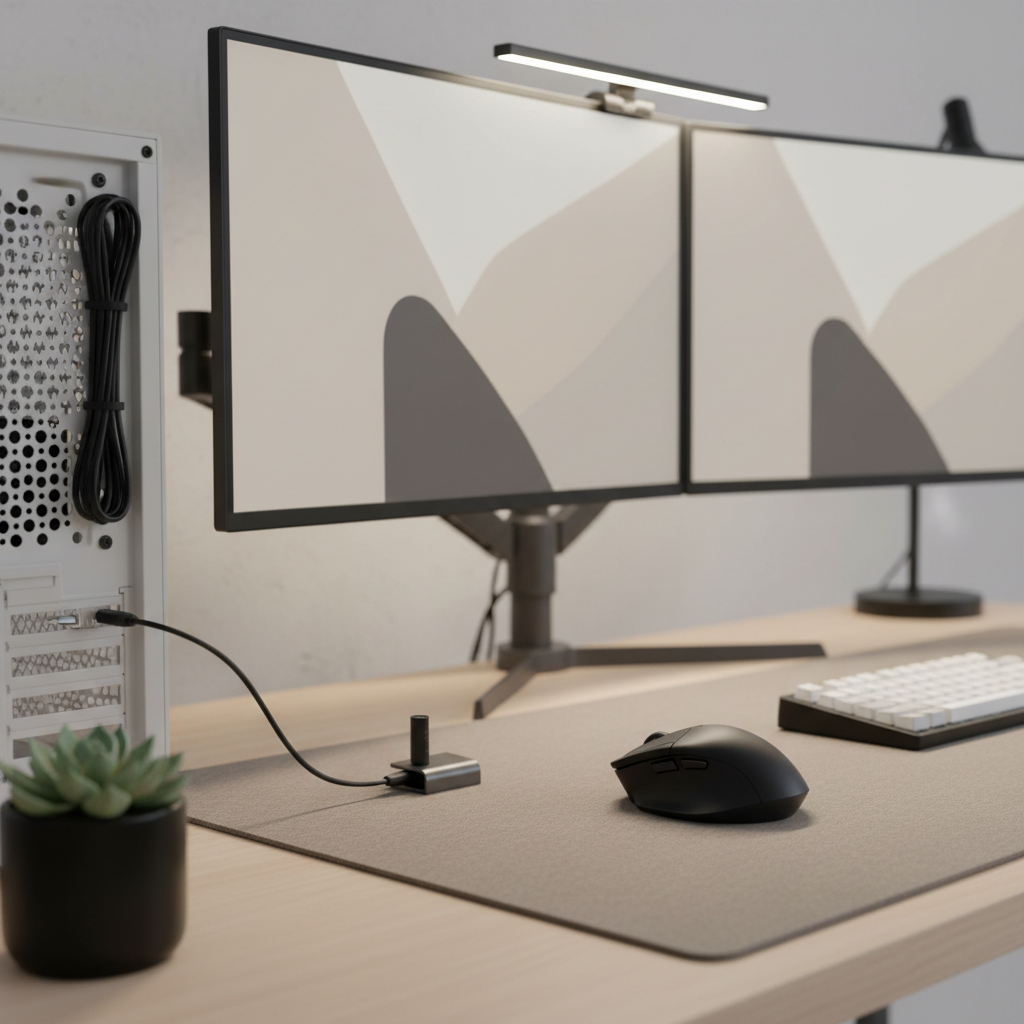
- Use the included extender (many mice ship one) or any short USB extension cable.
- Place the receiver on the desk, within 8–20 inches of the mouse.
- Avoid plugging the dongle directly into a USB 3.x port if you have a USB 2.0 option.
2) Prefer the 2.4 GHz dongle over Bluetooth when latency matters
Bluetooth can be totally fine for office work, but if you’re chasing responsiveness, the proprietary 2.4 GHz mode often feels tighter and more consistent. In many setups, this single swap answers “how to reduce input lag on wireless mouse” better than a dozen driver tweaks.
If you must use Bluetooth, keep your PC’s antenna or adapter positioned well, and avoid stacking interference sources next to it.
3) Set a sensible polling rate (and don’t assume higher is always better)
Polling rate is how often the mouse reports position to the PC, commonly 125/500/1000 Hz. Higher can reduce feelable delay, but it can also increase CPU overhead on some systems or expose USB/controller instability.
- For most people: 500 Hz is a stable sweet spot.
- For competitive play on a solid PC: 1000 Hz can feel better.
- If you see stutter after increasing: step back to 500 Hz and re-test.
Change polling rate in your mouse software (Logitech G HUB, Razer Synapse, SteelSeries GG, etc.). If you don’t have vendor software, you may be stuck with the default.
4) Turn off Windows USB power saving for the receiver
Windows can suspend USB devices to save power, which sometimes creates wake delays or periodic hiccups.
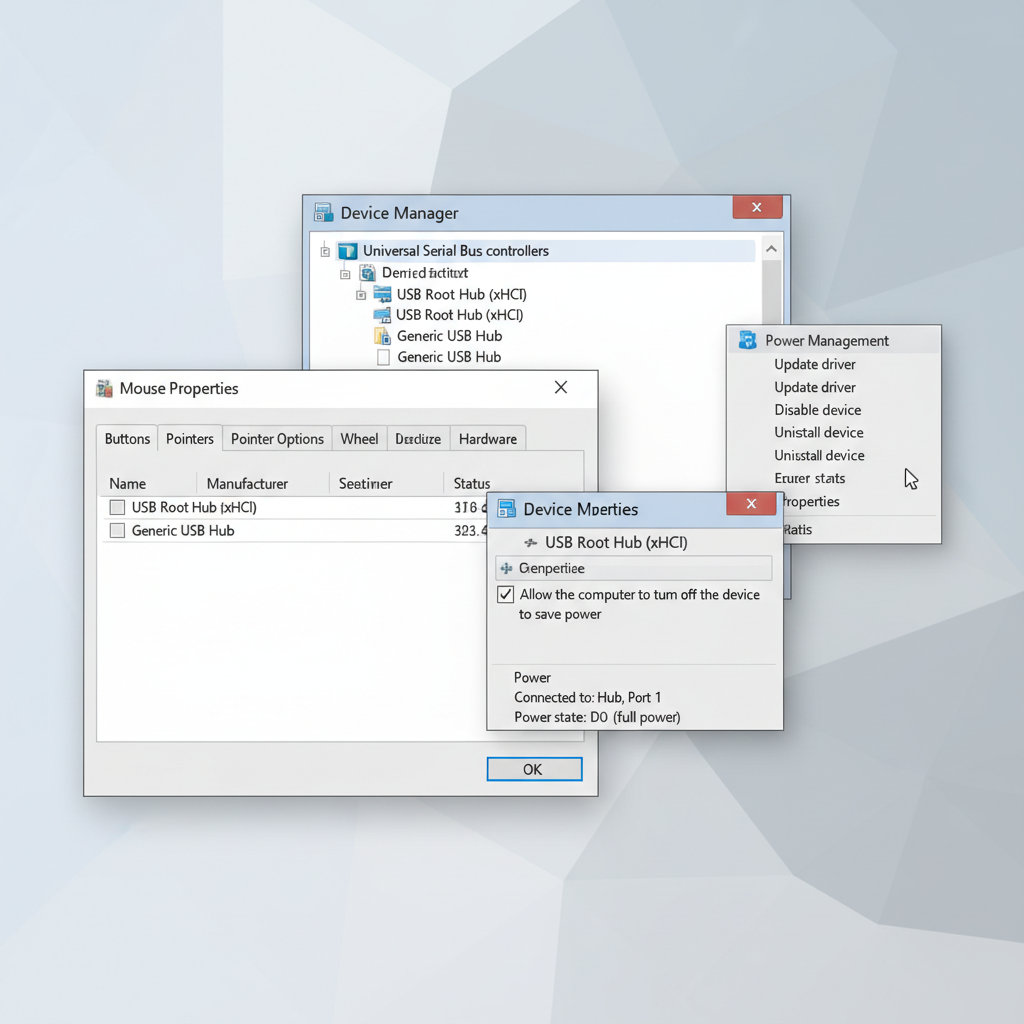
- Device Manager → Universal Serial Bus controllers → USB Root Hub (and Generic USB Hub) → Properties → Power Management → uncheck Allow the computer to turn off this device to save power.
- For laptops: Control Panel → Power Options → Advanced → USB settings → USB selective suspend → set to Disabled (if available).
According to Microsoft, USB selective suspend is designed to reduce power use by putting idle devices into a suspended state, which is good for battery, but not always great for constant low-latency input.
Fixes by scenario (pick what matches your setup)
Different environments create different lag patterns, so here’s the practical branching path.
Gaming PC with lots of USB devices
- Move the receiver to a USB 2.0 port via extension cable.
- Unplug high-speed external drives temporarily and see if stutter disappears.
- Avoid unpowered hubs for the dongle, connect directly to the PC when possible.
Laptop on Wi‑Fi (busy apartment, office, dorm)
- If your mouse supports it, try 2.4 GHz dongle instead of Bluetooth.
- Switch your Wi‑Fi to 5 GHz or 6 GHz if your router and laptop support it, this can reduce 2.4 GHz congestion.
- Keep the laptop’s left/right side ports in mind, sometimes the port closest to your mouse performs better.
Mac setup (Bluetooth-only mouse or preference)
- Minimize Bluetooth interference: move external SSDs/docks away from the Bluetooth antenna area.
- Update macOS and mouse firmware via the vendor app when available.
- If cursor feels “floaty,” check System Settings for tracking speed and disable any third-party smoothing utilities to compare.
Office work with occasional lag spikes
- Replace batteries or fully charge the mouse, low power can trigger aggressive saving behavior on some models.
- Test on a mousepad, reflective desks can cause tracking loss that looks like delay.
- Try a different USB port, front-panel ports sometimes behave worse than rear motherboard ports.
Settings and hardware checklist (with realistic expectations)
If you like a clear “do this, then this” list, this is the one. It’s also where people tend to over-tweak, so keep it simple and test after each change.
- Update mouse firmware via vendor software if available.
- Update chipset/USB drivers from your PC or motherboard vendor, not random driver sites.
- Disable “Enhance pointer precision” in Windows if you want predictable raw movement, especially for FPS games.
- Check battery mode in mouse software, “High Performance” often reduces sleep behavior.
- Swap ports: test a rear USB 2.0 port, then a rear USB 3.x port, don’t guess.
- Remove variables: unplug extra wireless receivers (keyboard dongles, gamepads) and compare.
Quick comparison table: symptom → likely cause → what to try
| What you feel | Most likely cause | Fix worth trying first |
|---|---|---|
| Consistent “behind” feeling | Bluetooth latency, low polling, power saving | Use 2.4 GHz dongle, set 500–1000 Hz, performance mode |
| Random freezes or cursor jumps | Interference, receiver placement, USB 3.0 noise | USB extension, move receiver near mousepad, avoid USB 3.x |
| Lag only in games | Frame-time spikes, V-Sync, heavy CPU load | Monitor frame-time, adjust in-game settings, test windowed |
| Worse on one desk surface | Tracking instability | Use a mousepad, clean sensor lens, change surface |
| Gets worse when using a hub | Hub power/bandwidth issues | Connect receiver directly, try powered hub if needed |
Common mistakes that waste time
A few traps show up again and again when people search how to reduce input lag on wireless mouse, because they sound “technical” but don’t address the bottleneck.
- Ignoring receiver placement while changing ten software settings. This is backwards in many homes.
- Running the dongle from a cheap unpowered hub and expecting stability, hubs vary wildly.
- Assuming 1000 Hz is always better, on some systems it creates jitter that feels like lag.
- Mixing multiple mouse utilities (vendor app plus third-party acceleration/smoothing), then chasing “mystery delay.”
- Blaming the mouse for display lag, if your monitor or TV adds processing, input can feel late no matter what mouse you use.
When it’s time to consider an upgrade or professional help
If you’ve tested receiver placement, ports, power settings, and connection mode, and you still get lag, the limiting factor may be hardware quality or a system-level issue.
- Older Bluetooth adapters and bargain dongles can be inconsistent, a newer Bluetooth adapter or switching to 2.4 GHz may help.
- Very congested RF environments can overwhelm cheap wireless designs, higher-end mice often handle interference better.
- PC stability issues (DPC latency, driver conflicts) can cause input jitter, if you see audio pops plus mouse stutter, it may be worth asking a PC technician to review drivers and system health.
If you’re troubleshooting on a work-managed computer, it’s smart to loop in IT before installing drivers or changing power policies.
Key takeaways (so you can act fast)
- Receiver placement fixes more “wireless lag” than most settings tweaks, use an extension and keep it near the mousepad.
- Use the 2.4 GHz dongle when responsiveness matters, Bluetooth is often fine but not always the lowest-latency path.
- Start with 500 Hz polling, then try 1000 Hz if your system stays stable.
- Disable USB power saving for hubs/root hubs if you see periodic hiccups.
Conclusion: a simple, repeatable way to reduce wireless mouse lag
If your goal is a mouse that feels “wired,” don’t start by hunting obscure registry tweaks, start by cleaning up the wireless path. Put the receiver close, avoid USB 3.0 noise, choose the right connection mode, then tune polling and power settings. That sequence solves a lot of real-world complaints with less trial-and-error.
If you want one action item today, move the receiver to your desk with a short extension cable and test again, it’s boring, but it’s the fix that most often makes people stop noticing lag.
FAQ
How do I know if my lag is from the mouse or my PC?
Try the mouse on another computer, or try a different mouse on your computer. If the “behind” feeling stays on the same PC across devices, it’s likely system load, drivers, or display/game settings rather than the mouse link.
Is Bluetooth always slower than a 2.4 GHz receiver?
Not always, but many proprietary 2.4 GHz designs are optimized for steady low latency, while Bluetooth prioritizes compatibility and power efficiency. If you feel delay in games, it’s a fair bet the dongle mode will feel better.
Will a USB 2.0 port reduce wireless mouse input lag?
It can help indirectly because USB 3.x ports and devices may create 2.4 GHz interference. Plugging the receiver into USB 2.0, especially via an extension cable, often reduces stutter more than it changes raw latency.
What polling rate should I use for wireless gaming?
Many players like 1000 Hz, but 500 Hz is a stable baseline that still feels responsive. If 1000 Hz adds jitter or CPU spikes on your system, dropping to 500 Hz is a reasonable trade.
Why does my mouse lag only when my CPU or GPU is busy?
When frame times spike, the whole input-to-display pipeline feels delayed. You can still optimize the mouse link, but you may get bigger gains by stabilizing FPS, reducing background tasks, or adjusting V-Sync and graphics settings.
Does a wireless mouse lag more when the battery is low?
On some models, yes, low battery may trigger more aggressive sleep or power-saving behavior. Charging or replacing the battery is a quick test before you go deeper.
Can a mousepad really reduce “lag”?
If the sensor struggles on your desk surface, you’ll see skips that feel like delay. A decent mousepad removes that variable and makes troubleshooting the wireless link much clearer.
Do I need special drivers to reduce input lag on a wireless mouse?
Usually you just need the vendor app to adjust polling and update firmware. Beyond that, focus on stable USB/chipset drivers from your PC manufacturer, and avoid sketchy driver installers.
If you’re still chasing how to reduce input lag on wireless mouse after trying receiver placement, ports, and polling, it may be time to compare your mouse on another PC or consider a model known for strong 2.4 GHz performance, it’s often a simpler path than endless setting tweaks.