
how to enable hdr on windows 11 for games comes down to three things: your display must truly support HDR, Windows HDR has to be turned on in the right place, and the game needs to be set up so it actually uses HDR instead of a fake “HDR” filter.
If you have an HDR monitor or TV and games still look washed out, dim, or weirdly gray, you’re not alone, Windows 11 can be picky about the signal path, color format, and calibration. A single wrong toggle can make HDR look worse than SDR.
This guide walks through quick checks, step-by-step setup, and practical tuning so highlights pop without crushing shadows, plus a few gotchas that tend to waste time.
Before you start: confirm your PC, cable, and display can do real HDR
Before changing Windows toggles, make sure the hardware chain can carry an HDR signal. A lot of “HDR problems” are actually cable/port limits or a monitor set to the wrong mode.
Fast compatibility checklist
- Display supports HDR: Look for “HDR10” on the monitor/TV spec sheet. Some screens advertise “HDR ready” but deliver limited brightness, HDR still works but may look underwhelming.
- Correct port: Many monitors only support full HDR on specific inputs (for example, HDMI 2.0/2.1 port 1, or DisplayPort 1.4). Check the label on the back and the manual.
- Proper cable: A low-quality HDMI cable can trigger flicker, black screens, or force lower color depth. For HDR gaming, HDMI 2.0+ or DP 1.4-class cables are typical, exact needs vary by resolution and refresh rate.
- GPU supports HDR output: Most modern NVIDIA/AMD/Intel GPUs do, but driver updates matter.
- Windows 11 updated: HDR improvements often ship in Windows updates.
According to Microsoft Support, HDR in Windows depends on both the display’s HDR capability and correct system settings, and Windows may offer an HDR toggle only when the display reports HDR support.
How to enable HDR in Windows 11 (the setting that actually matters)
This is the core path most people need. If you only do one thing, do this part carefully.
Turn on HDR for the right display
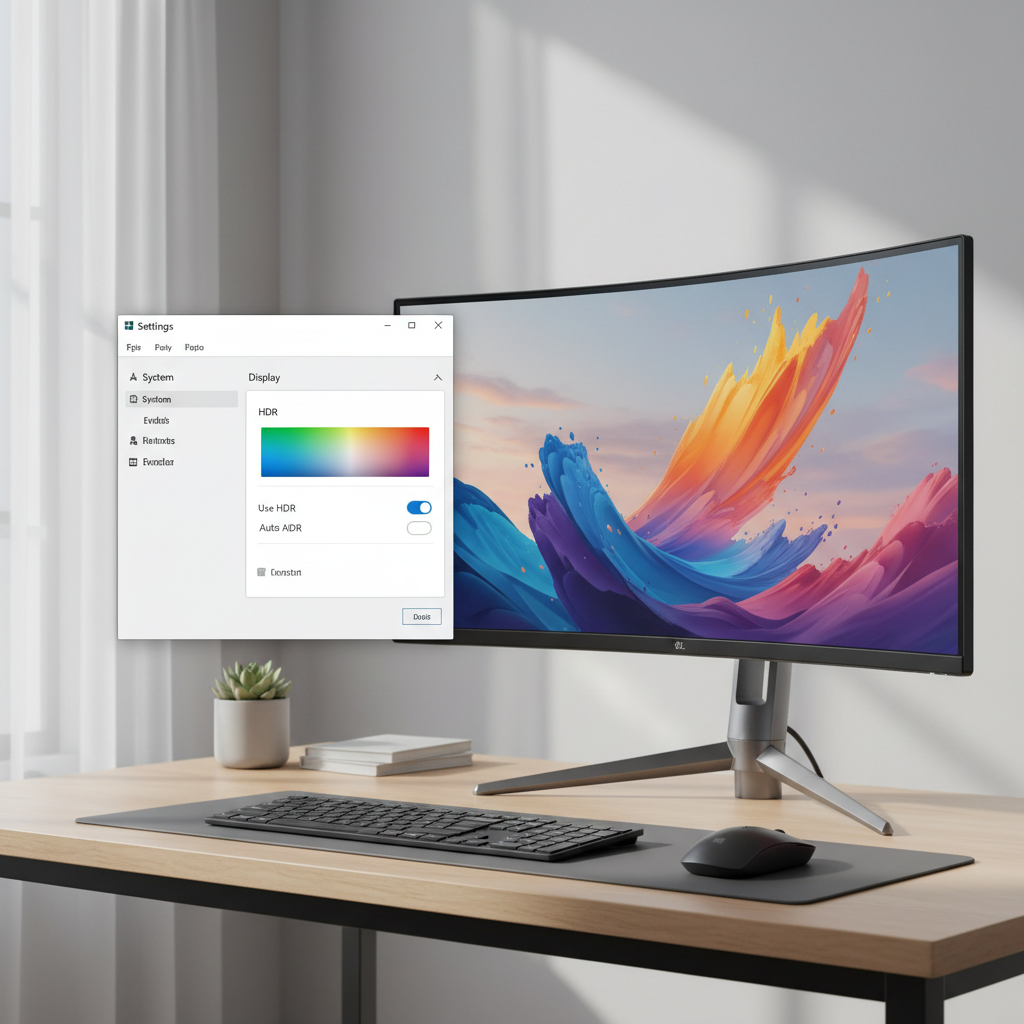
- Open Settings → System → Display.
- Click the display you use for gaming (important if you have multiple monitors).
- Select HDR.
- Toggle Use HDR to On.
If the HDR switch doesn’t appear, Windows likely isn’t detecting HDR capability. That usually points back to input port, cable, or the monitor’s own HDR setting.
Optional, but useful: Auto HDR
- In the same HDR page, toggle Auto HDR On if you want Windows to enhance some DirectX 11/12 SDR games.
Auto HDR can look great in some titles and odd in others. If a game suddenly looks too bright or the UI blooms, disable Auto HDR for a quick sanity check.
Make HDR look good: calibrate instead of guessing
Enabling HDR is step one, making it look right is step two. A common complaint is “HDR is gray,” which often comes from mismatched brightness, incorrect tone mapping, or skipping calibration.
Use Windows HDR Calibration (recommended)
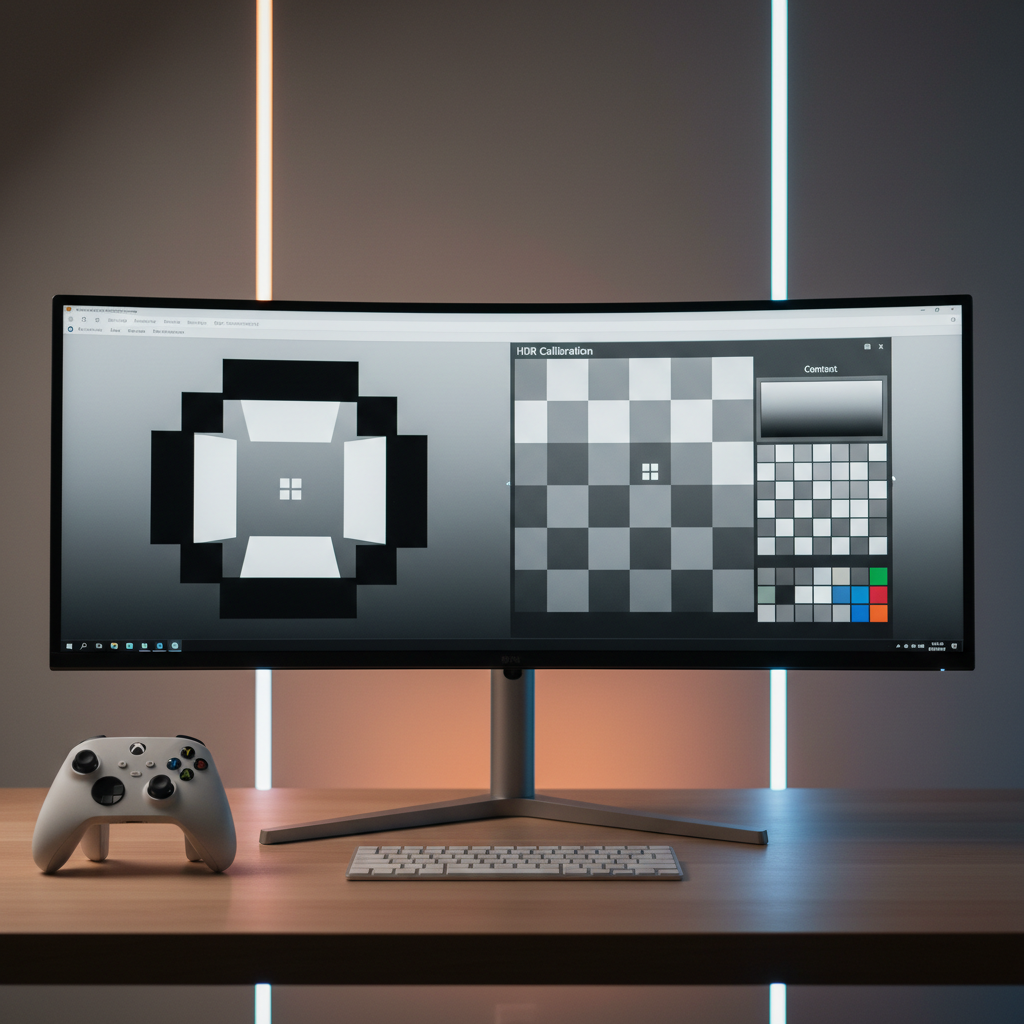
- Install Windows HDR Calibration from the Microsoft Store.
- Run it on your gaming display and follow the patterns for black level, peak brightness, and color saturation.
- Save the profile when finished.
According to Microsoft, the Windows HDR Calibration app helps improve HDR accuracy by creating a calibration profile tailored to your display.
Adjust “SDR content brightness” only if your desktop looks wrong
On the Windows HDR settings page, you’ll see an SDR content brightness slider. This does not “fix HDR” in games, it mainly changes how SDR apps look while HDR is enabled.
- If your desktop and browser look too dim with HDR on, increase this slider a bit.
- If whites look blown out on the desktop, reduce it.
Game-side settings: enable HDR per title and set the right in-game calibration
Many games have their own HDR toggle and calibration screens. Skipping them is a fast way to get crushed blacks or neon highlights, even when Windows HDR is configured correctly.
What to look for in a game’s HDR menu
- HDR On/Off: Turn it on after Windows HDR is enabled.
- Paper white (UI brightness): Adjust so menus look normal, not glowing.
- Peak brightness: Set closer to what your display can actually do. If you guess too high, highlights clip.
- Black level: Raise only if shadow detail disappears, but avoid lifting blacks until the image looks washed.
If a game offers “HDR10” vs “Dolby Vision,” Windows PC gaming typically targets HDR10, support varies by display and title.
Common HDR problems on Windows 11 (and what usually fixes them)
This is where most setup guides get vague. Here’s what tends to work in real troubleshooting, without pretending there’s one magic switch.
Problem: HDR toggle missing in Windows
- Enable HDR/HDMI UHD Color/Enhanced format in the monitor/TV on-screen menu.
- Move to a different port on the display that supports full bandwidth.
- Swap cable, especially if you see intermittent flicker or blackouts.
- Update GPU drivers, then reboot.
Problem: Colors look washed out or gray
- Run Windows HDR Calibration again, don’t rely on default profiles.
- Check GPU control panel output settings, an incorrect color range can make blacks look lifted. The right choice depends on your display and connection, many PC monitors prefer Full range.
- Turn off any “HDR effect” or “dynamic contrast” mode on the monitor if it fights the game’s tone mapping.
Problem: HDR works, but brightness is too low in games
- Verify the game’s HDR calibration, especially peak brightness and paper white.
- Disable power-saving or eco modes on the display.
- If you use multiple monitors, confirm the game runs on the HDR display, borderless window sometimes launches on the wrong screen.
Problem: Alt-Tab causes flicker or the screen goes black
- Try borderless windowed instead of exclusive fullscreen, or vice versa, whichever is more stable on your setup.
- Turn off overlays one by one (Game Bar, Discord, GPU overlays) to isolate conflicts.
- Lower refresh rate temporarily to test bandwidth limits, especially with 4K + high Hz.
Quick reference table: what to enable, where, and why
If you want a short map before you dive back into settings, this table covers the usual “must-haves.”
| Item | Where | What to set | Why it matters |
|---|---|---|---|
| Use HDR | Windows Settings → System → Display → HDR | On | Allows HDR output pipeline for the display |
| Auto HDR | Windows HDR settings | Optional | Can enhance some SDR games, but not always preferred |
| Windows HDR Calibration | Microsoft Store app | Run and save profile | Improves tone mapping to match your panel |
| Monitor HDR mode | Monitor/TV OSD menu | HDR / Enhanced / UHD Color enabled | Some displays block HDR unless enabled per input |
| In-game HDR calibration | Game settings | Set paper white, peak brightness, black level | Prevents clipping and crushed shadows |
When it’s worth getting extra help (or at least checking documentation)
If HDR still looks wrong after you confirm hardware support, enable Windows HDR, and calibrate, you may be dealing with a display-specific quirk or a title-specific HDR implementation.
- If your TV uses vendor-specific labels like “Enhanced format,” check the exact model’s manual, the setting names vary a lot.
- If you’re using an AVR, capture card, dock, or KVM, test direct-to-display, those devices can break HDR handshakes.
- If you suspect hardware defects or persistent signal dropouts, consider asking the manufacturer or a qualified technician, especially if you see frequent black screens across multiple cables and ports.
Key takeaways and a practical next step
Most people get HDR working once they stop treating it like a single switch and handle the full chain: display input, Windows HDR, and per-game calibration. If you only have 10 minutes, enable HDR in Windows 11, run Windows HDR Calibration, then redo the game’s HDR sliders with fresh eyes.
Your next step: pick one game you know supports HDR well, calibrate it carefully, and use it as your baseline. After that, it becomes much easier to spot whether a new title has great HDR or just a mediocre implementation.
FAQ
Why can’t I find the HDR option in Windows 11?
Windows usually hides the toggle when the display reports no HDR support. In practice, it’s often the wrong port, a disabled HDR mode in the monitor/TV menu, or a cable that forces lower bandwidth.
Should I turn on Auto HDR for every game?
Not automatically. Auto HDR can add punch to some SDR titles, but it can also over-brighten UI elements or change the intended look. If something feels off, disabling Auto HDR is a quick test.
My HDR looks washed out, is that normal?
No, HDR should not look permanently gray. A washed look often points to calibration issues, mismatched color range, or display-side processing. Running Windows HDR Calibration and revisiting in-game HDR sliders usually helps.
Do I need a specific HDMI cable for HDR gaming?
Many setups work with standard certified cables, but higher resolution and refresh rates demand more bandwidth. If you see flicker, black screens, or HDR dropping out, swapping to a known-good higher-spec cable is a reasonable troubleshooting step.
Is HDR better in fullscreen or borderless windowed?
It depends on the game and GPU driver. Some titles behave better in fullscreen, others in borderless. If you get Alt-Tab flicker or black screens, switching modes is worth trying.
Does HDR increase input lag?
On many modern monitors, HDR itself doesn’t add much latency, but extra image processing modes can. If your display has a Game Mode, enabling it often keeps processing minimal.
Can I use HDR with multiple monitors?
Yes, but Windows can be finicky about which display is “active” for HDR. Confirm the game launches on the HDR screen, and expect more quirks if you mix HDR and non-HDR panels.
If you want the simplest workflow
If you’re trying to enable HDR for games but keep bouncing between Windows settings, GPU control panels, and in-game sliders, it can help to standardize your process: verify the cable and port once, calibrate with the Windows tool, then treat each game’s HDR screen as mandatory setup rather than optional tweaking.