
how to enable 4k resolution on gaming laptop usually comes down to three things: whether your panel or external monitor is truly 4K, whether the GPU path supports 4K at your target refresh rate, and whether Windows or the GPU driver is limiting the mode.
If you feel stuck because 3840x2160 does not show up, the image looks soft, or your laptop “says” 4K but games still render lower, you are not alone. Gaming laptops mix internal display panels, iGPU and dGPU switching, and multiple port standards, so one weak link can cap resolution.
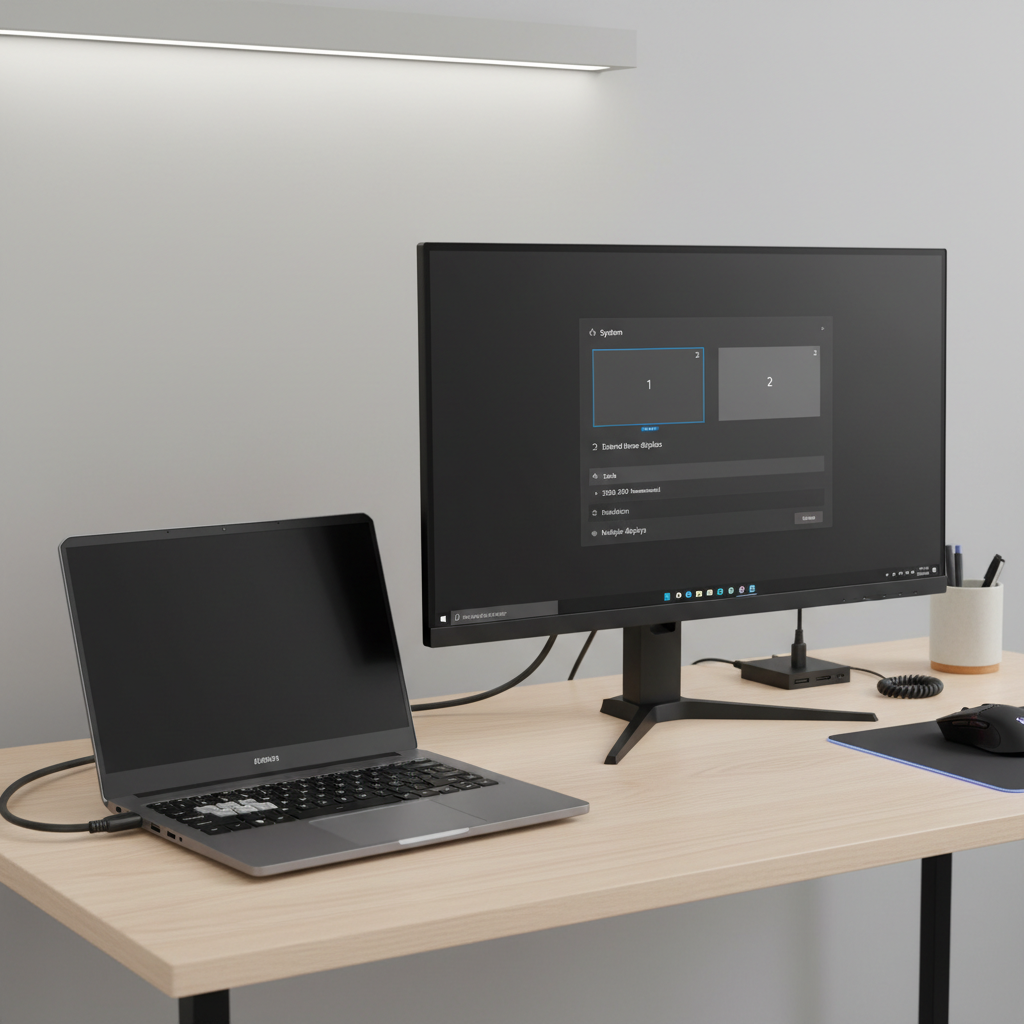
This guide helps you confirm what your laptop can actually output, pick the right cable and port, enable the correct Windows and GPU settings, and avoid the common traps that waste time. No magic tweaks, just the checks that usually move the needle.
Confirm what “4K” means for your setup (internal vs external)
Before changing settings, verify which screen you want in 4K. Many gaming laptops ship with 1080p or 1440p internal panels, then advertise 4K output support through HDMI or USB-C.
- Internal display: If your built-in panel is not 4K, Windows cannot “enable” true 4K there. You can use super sampling features, but that is different from a 4K panel.
- External display: If you connect a 4K monitor/TV, you can run 3840x2160 as long as the laptop port, cable, and monitor input all support it.
Quick check: in Windows, go to Settings → System → Display, click your screen, then look at Display resolution and Advanced display to see “Desktop mode” and refresh rate options.
Hardware checklist: GPU, ports, cable, and monitor input
If 4K is missing from the list, hardware limits are the most common reason. The annoying part is that any single link can cap output, especially at 4K 120Hz.
Fast self-check list
- GPU capability: Modern NVIDIA GeForce RTX and AMD Radeon RX laptop GPUs typically handle 4K output, but older or low-end parts may cap refresh rate or require specific ports.
- Port type matters: HDMI version, DisplayPort version (often via USB-C), and whether the port is wired to the dGPU can change what modes appear.
- Cable rating matters: A “random HDMI cable” often becomes the bottleneck at 4K 60Hz or higher.
- Monitor/TV input port: Some displays have only one HDMI port that supports full bandwidth, or require an “Enhanced” mode.
Common 4K mode targets (practical table)
| Goal | Typical minimum connection | Common gotcha |
|---|---|---|
| 4K @ 60Hz | HDMI 2.0+ or DisplayPort 1.2+ | Old HDMI cable or adapter limits to 30Hz |
| 4K @ 120Hz | HDMI 2.1 or DisplayPort 1.4 (often USB-C DP Alt Mode) | TV “Enhanced format” off, or port not full bandwidth |
| 4K HDR | HDMI 2.0+ (better with 2.1) or DP 1.4+ | HDR toggle conflicts with limited bandwidth at high refresh |
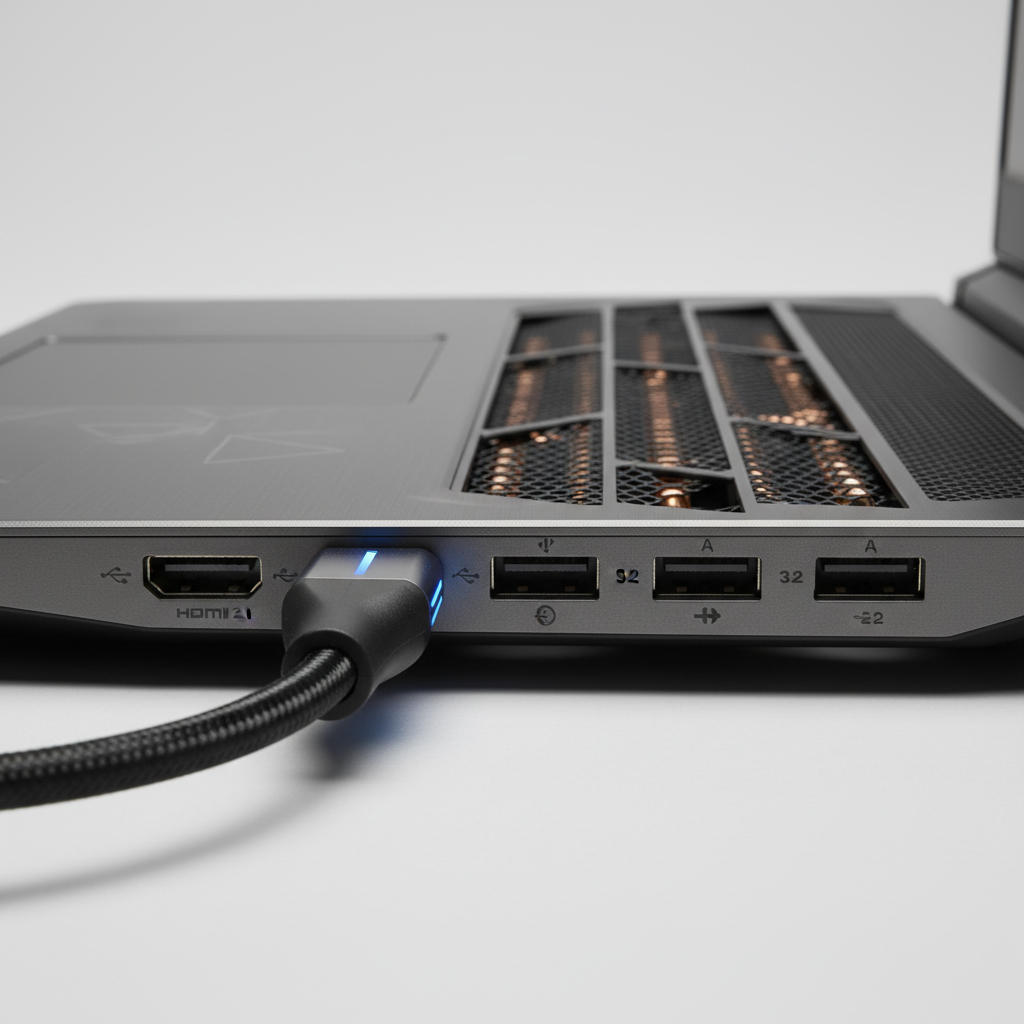
According to NVIDIA, maximum supported resolutions and refresh rates depend on the specific GPU and the display interface in use, so it is normal for the same laptop to offer different 4K options depending on which port you use.
Enable 4K in Windows Display Settings (and fix missing 3840×2160)
how to enable 4k resolution on gaming laptop in Windows is mostly a settings path, but the order matters when you have multiple screens.
Step-by-step
- Open Settings → System → Display.
- Select the correct display at the top (click the numbered rectangle).
- Set Display resolution to 3840 × 2160.
- Open Advanced display and confirm refresh rate (start with 60Hz to prove 4K works).
- If text looks tiny, adjust Scale (150% or 200% is common on 4K).
If 3840×2160 is not listed
- Try another port: On many laptops, USB-C (DP Alt Mode) supports higher modes than HDMI, or the reverse, depending on design.
- Remove adapters: USB-C to HDMI dongles frequently cap at 4K 30Hz or fail to expose modes correctly.
- Lower refresh rate first: Some setups hide 4K until you drop from 120Hz to 60Hz.
- Update GPU driver: A driver issue can block EDID detection, which is how Windows learns supported modes.
- Check the monitor menu: TVs may require enabling “HDMI UHD Color”, “Enhanced format”, or similar.
Use NVIDIA Control Panel or AMD Adrenalin to force the right mode
Windows is not always the final authority. GPU control panels can reveal modes Windows hides, or let you create a custom resolution if the display supports it but negotiation fails.
NVIDIA (common path)
- Open NVIDIA Control Panel → Change resolution.
- Select the external display, choose 3840 × 2160.
- Under “Refresh rate,” pick 60Hz to validate, then try higher.
- If needed, click Customize and create a custom resolution, but stop if the display shows artifacts or blanks out.
According to Microsoft, keeping Windows and graphics drivers updated improves compatibility with external displays and can resolve detection issues after OS updates.
AMD (common path)
- Open AMD Software: Adrenalin Edition.
- Go to Settings → Display and confirm the display reports 4K capability.
- Check for options like GPU scaling or Custom Resolutions if 4K modes do not appear.
In-game settings: 4K desktop vs 4K render resolution
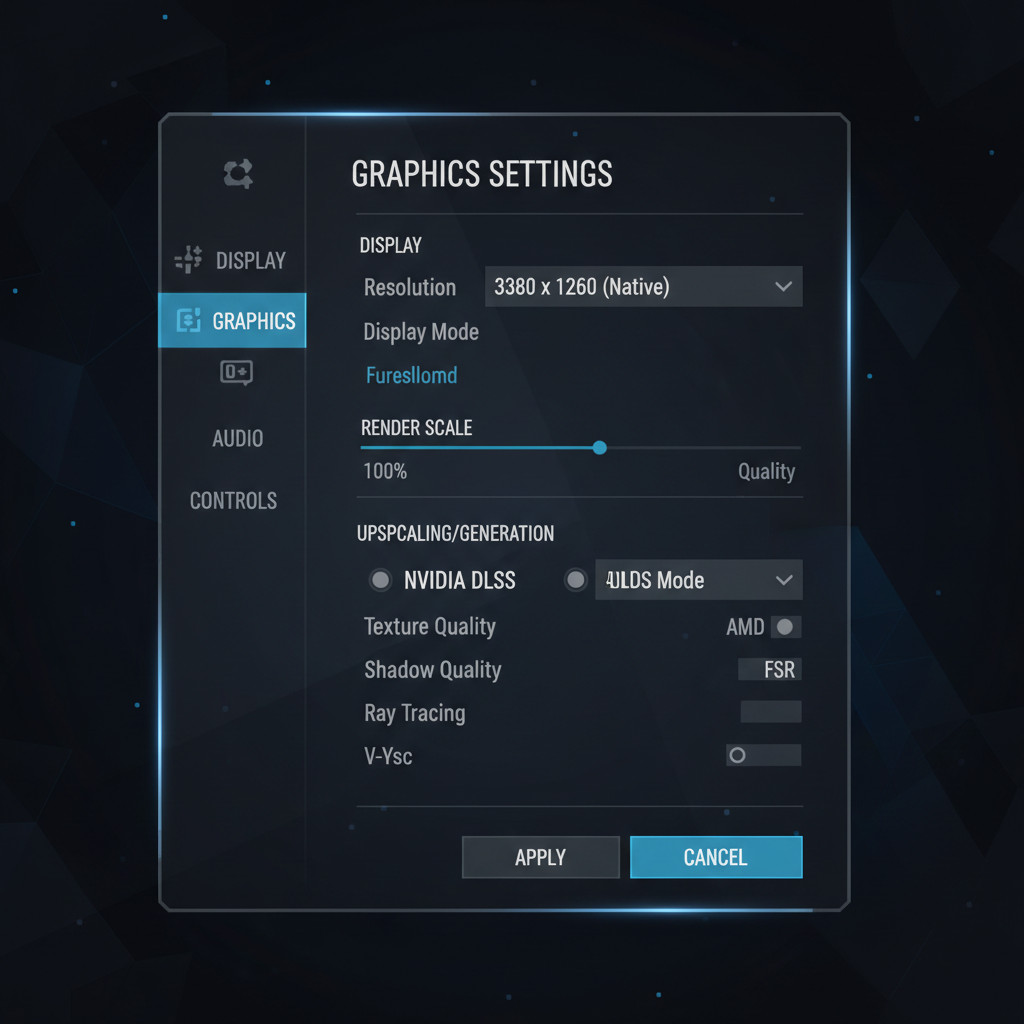
A lot of people enable 4K on the desktop, then launch a game and still see 1080p. That is usually a game setting, not a Windows failure.
- Fullscreen exclusive vs borderless: Some games set their own resolution only in exclusive fullscreen, while borderless follows desktop settings.
- Render scale: Many titles render at a lower internal resolution for performance, then upscale.
- DLSS/FSR/XeSS: Upscaling can look great, but it is not the same as native 4K, and menus may still show “4K output.”
Practical tip: set the game to 3840×2160, then check render resolution or resolution scale to make sure it is not stuck at 70% or 80% unless you choose that intentionally.
Quick troubleshooting for blurry 4K, 30Hz lock, or black screen
Once 4K shows up, the next issues tend to be “it looks wrong” problems. Here are the fixes that usually matter.
- Blurry text on external monitor: Confirm the monitor input is set to PC mode, then run Windows ClearType tuning and adjust scaling. Also check the monitor sharpness setting, some ship over-processed.
- Stuck at 4K 30Hz: Swap to a certified higher-bandwidth cable, avoid adapters, and verify you are on the correct monitor HDMI port.
- Black screen when switching to 4K: Wait 15 seconds, Windows may revert. If it keeps happening, reduce refresh rate, disable HDR, then re-enable features one at a time.
- 4K works on one port but not another: That can be normal. Some laptop ports route through the iGPU, and some route through the dGPU, with different limits.
Key takeaways and a practical “do this next” plan
If you want the cleanest path, treat 4K as a chain: display capability, port version, cable, Windows mode, then game settings. When you change too many things at once, it becomes guesswork.
- Start simple: Aim for 4K 60Hz first, confirm it is stable, then chase 120Hz, HDR, and VRR.
- Use the right connection: If your laptop supports USB-C DisplayPort output, it often gives you more reliable 4K options than a cheap HDMI adapter.
- Validate in-game: Desktop 4K does not guarantee native 4K rendering inside every title.
If you are deciding what to try today, do this: check Windows Advanced Display to confirm the active refresh rate, swap to a known-good cable, then set the game resolution and render scale intentionally.
FAQ
Why does my gaming laptop not show 3840x2160 as an option?
Most often the port, cable, or adapter limits bandwidth, or the display reports limited modes through EDID. Try a different port, remove adapters, and update GPU drivers before assuming the GPU cannot do 4K.
Can I enable 4K on a 1080p laptop screen?
Not as native panel resolution. You can sometimes use super resolution features or in-game render scaling for sharper edges, but the panel still has 1920×1080 physical pixels.
Why am I stuck at 4K 30Hz on HDMI?
A common cause is an HDMI 1.4 link somewhere in the chain, often the cable or an adapter. Also check whether the TV has a specific HDMI port that supports 4K 60Hz.
Does enabling HDR prevent 4K 120Hz?
It can, depending on bandwidth and color format negotiation. Many setups need HDMI 2.1 or DisplayPort 1.4 with compression support to keep 4K, HDR, and high refresh together.
Which is better for 4K output: HDMI or USB-C?
It depends on the laptop’s exact port versions and wiring. USB-C with DisplayPort Alt Mode is often strong for monitors, while HDMI 2.1 is great for modern TVs, the real answer is “use the port that exposes the modes you need.”
My desktop is 4K but games launch in 1080p, what should I change?
Check the game’s display mode and resolution inside the graphics menu, then confirm render scale is not set below 100% unless you want upscaling for performance.
Is it safe to create a custom 4K resolution in the GPU control panel?
Usually it is safe if you stay within what the monitor supports, but a bad setting can cause flicker or a temporary black screen. If you are unsure, stick to standard modes and consult the monitor specs or manufacturer support.
If you are still fighting missing 4K modes or unstable refresh rates, you might prefer a more hands-off approach: share your exact laptop model, GPU, and the monitor plus cable type you use, and work from a short compatibility checklist rather than trial-and-error.