
Best keyboard settings for esports usually come down to one thing: fewer “why didn’t it register?” moments when the match gets messy. If you feel random missed strafes, slow movement starts, or accidental abilities, it’s rarely just “bad mechanics” — settings and consistency matter.
A good setup also saves mental energy. You stop thinking about your keyboard and start thinking about timing, angles, and reads. That’s the real gain: not magic speed, just fewer small frictions adding up.
One common misunderstanding: people chase a single “pro settings” list. In reality, optimal settings depend on your keyboard hardware, the games you play, and even how hard you press keys when stressed. This guide helps you pick settings that stay reliable under pressure, then lock them in.
Start with the goal: consistency, not “fastest”
Competitive settings should feel boring in a good way. If your setup behaves the same at 2 AM ranked as it does in warmup, you’re winning.
- Reliability: every intended press registers, accidental presses drop.
- Low input friction: fewer delays from OS features, wireless sleep, or repeat lag.
- Muscle memory: keybinds and actuation stay stable across games.
According to Microsoft Support, accessibility and input features like Filter Keys can change how key presses are interpreted, which is great for certain users but can interfere with rapid tapping in games. The takeaway is simple: check OS-level input options before you blame your hands.
Quick self-check: what problem are you actually having?
Before changing everything, isolate the symptom. Most keyboard “issues” in esports fall into a few buckets.
- Missed taps (strafes, counter-strafes, rhythm inputs): actuation too high, debounce/scan quirks, or OS filters.
- Double inputs (extra jumps, unintended crouch spam): actuation too low, overly sensitive rapid trigger, or shaky resting fingers.
- Slow repeats (menus, weapon wheel, certain movement tech): repeat rate too slow, repeat delay too long.
- Hand fatigue: springs too heavy, key layout causing awkward reaches, wrist angle.
- Inconsistent feel between games: different binds, different sensitivity expectations, different movement demands.
If you can name your main symptom, your settings choices become much clearer, and you avoid the classic trap of “everything feels different and now I’m worse.”
Core keyboard settings that matter most (and why)
Actuation / sensitivity (mechanical, optical, Hall effect)
This is how far a key must travel before it registers. Lower actuation can feel faster, but it can also create accidental presses when you tense up.
- If you miss taps: try slightly lower actuation, or enable a more responsive trigger mode if your board supports it.
- If you get misfires: raise actuation a bit, or add a small “release” requirement if your software allows it.
- If you play multiple genres: keep one profile for FPS movement, another for MOBAs/MMOs.
Polling rate and USB behavior
Many gaming keyboards offer 1000 Hz polling. Higher polling can help on paper, but stability matters more than max numbers. If a higher polling rate causes weird behavior on your system, drop it one step and test again.
Also check basics: use a direct motherboard USB port when possible, avoid flaky hubs, and disable aggressive USB power saving if it causes random disconnects.
N-key rollover (NKRO) and anti-ghosting
For esports titles, you want multiple simultaneous presses to register properly, especially for movement plus modifiers.
- Ensure NKRO is enabled if your keyboard supports toggles.
- Test common combos: W + Shift + Space, A/D tapping + Ctrl, ability keys plus movement.
OS-level repeat rate and repeat delay
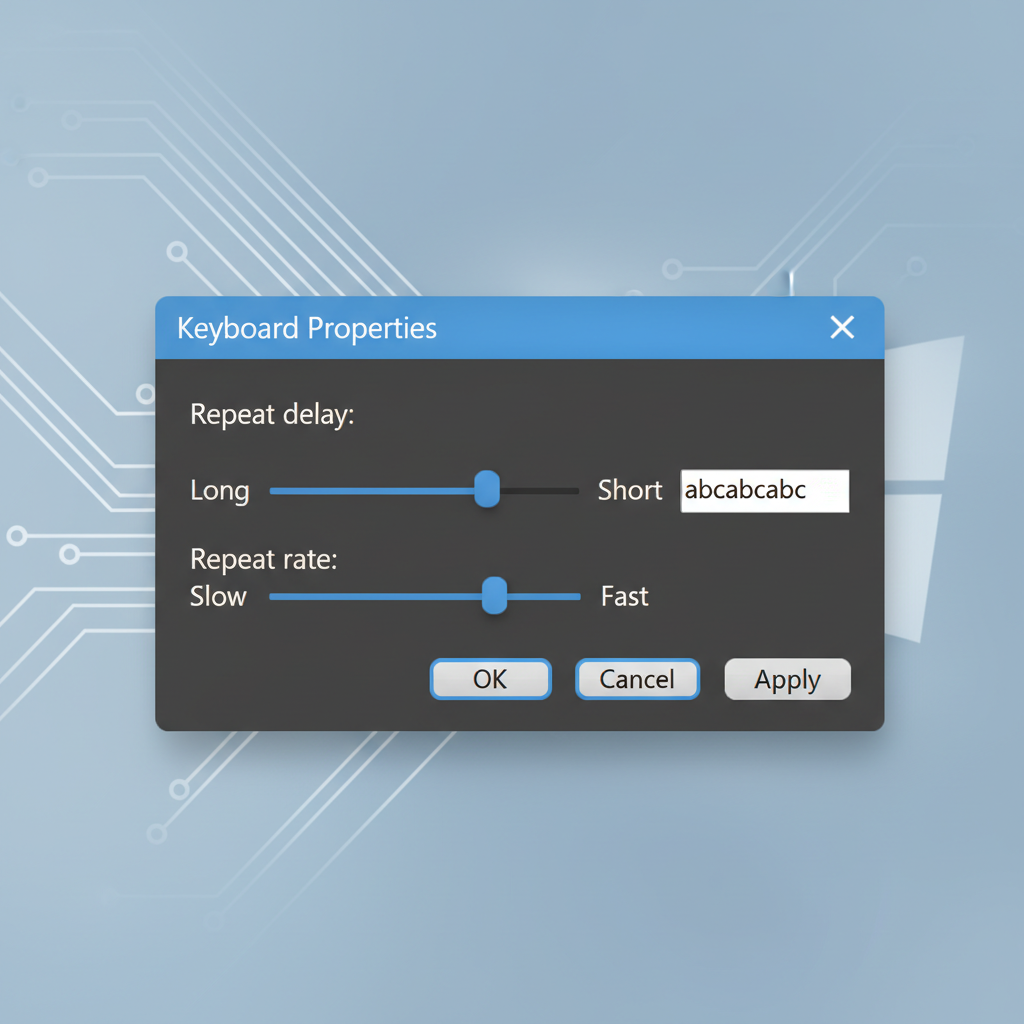
These settings affect how a key behaves when held down, mostly noticeable in menus, inventory management, or games that read key repeats in specific ways. Many players keep repeat delay short and repeat rate fast, but if you get accidental repeats while typing between matches, consider a middle-ground and rely on in-game binds for gameplay.
Recommended baseline: a practical “set-and-test” table
Use this as a starting point, then adjust one variable at a time. That last part sounds obvious, but it’s where most tuning goes off the rails.
| Setting | Baseline for most esports | Adjust if you notice… |
|---|---|---|
| Actuation distance | Medium-low (avoid extremes) | Missed taps → lower; accidental skills → higher |
| Rapid trigger / analog features | Off or conservative profile | Movement feels “twitchy” → reduce sensitivity |
| Polling rate | 1000 Hz if stable | Stutter/odd input → try 500 Hz |
| NKRO / anti-ghosting | On | Combo drops → verify mode, try different USB port |
| Windows Filter Keys | Off (unless needed) | Delayed presses → check accessibility settings |
| Key repeat delay/rate | Short delay, faster rate | Unwanted repeats in chat → back off slightly |
Game-by-game approach: bind philosophy that holds up
The best keyboard settings for esports often fail because keybinds fight your real hand behavior. Keep binds predictable, minimize finger travel, and avoid stacking too much on your weakest finger.
FPS (Valorant, CS2, Apex)
- Movement keys: keep default unless you have a clear reason, changing movement can break muscle memory fast.
- Crouch: choose “hold” vs “toggle” based on misinputs. If you accidentally crouch in fights, “hold” plus a slightly higher actuation can calm it down.
- Abilities: place high-frequency abilities on easy reaches (E, Q, mouse buttons), keep rare actions farther away.
MOBA (LoL, Dota 2)
- Quick cast: many competitive players prefer it for speed, but if you misfire spells, mixed casting can be a better compromise.
- Item keys: align with finger strength, not just tradition, and keep consumables consistent across champions.
Battle royale and “lots of inventory” games
- Consider slightly less aggressive key repeat if menu navigation becomes chaotic.
- Keep “drop,” “split,” and “equip” keys separated to avoid costly inventory mistakes.
Step-by-step: dial in settings in 20 minutes
If you want a simple process that doesn’t wreck your muscle memory, use this loop. One change, short test, quick note.
- Step 1: Reset to a known stable profile (stock actuation, NKRO on, polling rate 1000 Hz).
- Step 2: Fix OS conflicts: verify Filter Keys and other accessibility toggles, confirm keyboard software profiles are not auto-switching.
- Step 3: Pick one drill: 5 minutes of strafe tapping, 5 minutes of ability usage, 5 minutes of real match movement.
- Step 4: Adjust actuation by a small increment, then repeat the same drill.
- Step 5: Lock it: once it’s “good enough,” stop tweaking for a week and let your hands adapt.
Key point: the goal is fewer obvious errors, not a new sensation every session.
Common mistakes that waste time (or make you worse)
- Copying a pro’s setup blindly: their keyboard model, hand pressure, and role in-game can be totally different.
- Overusing ultra-low actuation: it feels amazing in the first hour, then you notice accidental utility dumps when adrenaline hits.
- Too many layers and macros: macros can violate tournament rules or game ToS in many cases, and they add failure points.
- Changing binds across games randomly: you end up relearning fundamentals instead of improving decision-making.
- Ignoring firmware/software updates: sometimes bugs exist, sometimes updates introduce them, so change only when needed and test after.
According to ESL, competitive events enforce equipment and fair-play rules that can restrict certain automation features. If you compete in organized tournaments, treat advanced macros and scripting as “guilty until proven allowed.”
When it’s worth getting more help (or different hardware)
If your settings are reasonable and problems persist, it may not be “you.” Hardware and ergonomics can be the limiter.
- Persistent key chatter (unintended double presses): could be switch wear, firmware, or debris, consider cleaning, warranty, or replacement.
- Wrist or finger pain: consider a different layout, lighter switches, a wrist rest, and breaks. If pain continues, it’s smart to consult a qualified healthcare professional.
- Frequent disconnects: try a different cable/port, then consider a more reliable board for competition.
Conclusion: the “best” settings are the ones you stop thinking about
Best keyboard settings for esports come from a calm baseline, small changes, and a short testing routine that mirrors real gameplay. If you do nothing else, turn off OS features that slow rapid taps, pick an actuation that matches your pressure under stress, then commit long enough for muscle memory to settle.
If you want an easy next step, choose one game you care about most, apply the baseline table, run the 20-minute drill, then keep a single stable profile for a week before touching anything again.
FAQ
- What are the best keyboard settings for esports FPS games?
Most players do well with stable 1000 Hz polling (if your system behaves), NKRO enabled, and a medium-low actuation that doesn’t trigger accidental utility when you tense up. - Should I use rapid trigger or analog keyboard features for competitive play?
They can help certain movement patterns, but many people over-tune them and get misfires. Start conservative, then increase sensitivity only if you can prove fewer mistakes in drills. - Does Windows Filter Keys affect gaming?
It can. According to Microsoft Support, Filter Keys changes how repeated or brief keystrokes are handled, which may interfere with fast tapping. If you need accessibility features, consider tailored settings rather than disabling blindly. - Is 8000 Hz polling worth it on a keyboard?
Sometimes, but stability wins. If higher polling introduces stutter or conflicts, dropping to 1000 Hz or 2000 Hz can feel better in real matches. - What actuation distance is best for competitive gaming?
It depends on your hands and switch type. If you bottom out hard, slightly higher actuation may reduce accidental presses; if you miss taps, lower actuation may help, but move in small steps. - Should I copy pro player keybinds?
Use them as ideas, not rules. Pros often optimize around their exact role, mouse buttons, and years of muscle memory, so copying everything can slow you down short-term. - Are macros allowed in esports tournaments?
Rules vary by organizer and game, and many leagues restrict automation. According to ESL, competitive rules can limit unfair advantages, so verify your tournament rulebook and avoid risky setups.
If you’re tweaking settings every night and still feel inconsistent, you might prefer a simpler approach: pick one stable profile per genre, document it, and only change one variable when you can clearly name the problem you’re solving.