
How to update meta quest 3 software usually comes down to three things: stable Wi‑Fi, enough battery, and knowing where Meta hides the update controls when auto-updates don’t trigger.
If your Quest 3 feels glitchy, battery drains faster than usual, or a new game says “update required,” you’re not alone, software updates often fix bugs, improve tracking, and patch security issues without you doing anything fancy.
Still, updates can stall, especially if the headset sleeps mid-download, the network blocks large files, or you’re enrolled in a beta channel without realizing it. This guide walks you through the normal update path, the quick checks that prevent most failures, and a few realistic fixes when it won’t install.
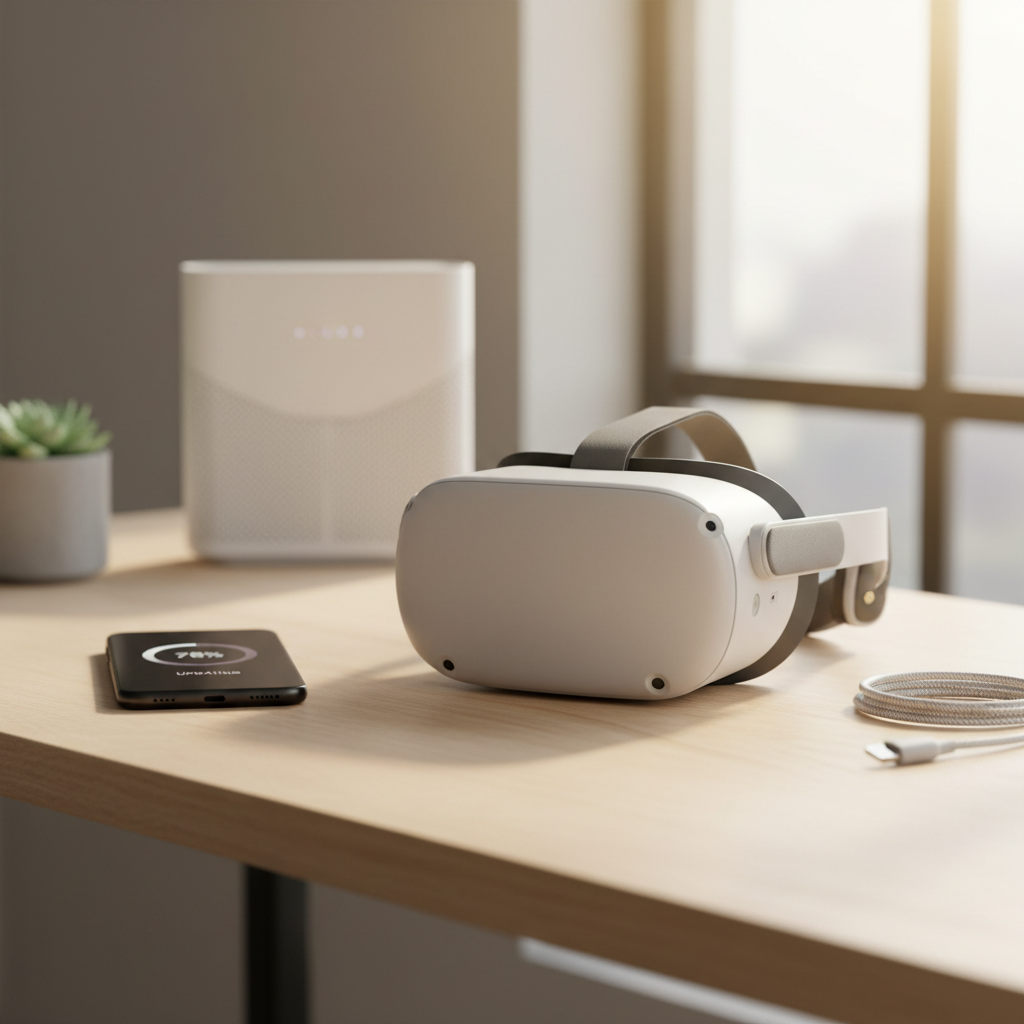
Before you update: a quick checklist that prevents most failures
Before you start hunting menus, set yourself up for a smooth install. Most “stuck update” complaints trace back to power, storage, or Wi‑Fi reliability.
- Battery: Aim for 50% or higher, or keep the headset plugged in during the update.
- Wi‑Fi: Use a stable home network when possible, public Wi‑Fi often blocks large downloads or disconnects.
- Storage: Leave a few GB free so the update can unpack correctly, low storage can cause repeated failures.
- Time: Give it 15–30 minutes of uninterrupted time, updates can download fast but install slowly.
- Sleep behavior: Keep the headset awake while the update starts, then let it finish without forcing power-offs.
According to Meta, keeping your device updated helps ensure you receive the latest features and security improvements, and updates may roll out gradually so two headsets can see them at different times.
Update Meta Quest 3 software from the headset (standard method)
If you just want the normal, supported route, do it inside the headset. This is the path most users should try first.
Steps
- Put on the headset, open Quick Settings from the system menu area.
- Go to Settings.
- Open System, then find Software Update (wording can vary slightly by version).
- If an update is available, choose Download or Install, then keep the headset on power.
If you’re checking and nothing shows up, it does not always mean your headset is “behind,” many updates are staged over days, and the update page can remain empty until your rollout window hits.

Use the Meta Quest app to verify updates and reduce guesswork
The mobile app won’t always force-install a headset firmware update on demand, but it’s still useful to confirm device status, connectivity, and whether you’re accidentally in a test channel. If you’re trying to figure out how to update meta quest 3 software and the headset menu looks “empty,” the app is a good second window.
- Open the Meta Quest app on your phone.
- Confirm your Quest 3 shows as connected and paired to the right account.
- Review device info pages for software/version hints and prompts (exact layout varies by app version).
- Check any beta/PTC related settings if you see unusual behavior or frequent hotfixes.
What you’re really doing here is validating that the headset and phone are “seeing” each other normally, when pairing breaks, update prompts can also get weird.
Auto-updates vs manual checks: what actually happens
Many people assume there’s a single “Update now” button and that’s it. In reality, Quest updates often behave like this: they download when the headset is idle, charge overnight, and then install on reboot.
That means manual checking can show nothing even though an update is queued, or the update can appear but not finish if the headset sleeps mid-process.
Practical expectations
- Staged rollout: your friend has the update, you don’t yet, that can be normal.
- Idle time matters: leaving the headset plugged in and on Wi‑Fi overnight often “magically fixes” it.
- Restarts help: a clean reboot can trigger an install that already downloaded.
Troubleshooting when the update is stuck, fails, or never appears
If the standard steps don’t work, don’t jump straight to drastic resets. Most fixes are basic but specific.
Try these in order
- Restart the headset (not just sleep), then check the software update screen again.
- Switch networks: move from a mesh node to the main router, or try a different home Wi‑Fi band if available.
- Free storage: uninstall one or two large apps, then reboot and re-check.
- Plug in and wait: leave it charging on Wi‑Fi for an hour, some downloads resume only when idle.
- Disable VPN or restrictive DNS on your router if you run them, they can interfere with update servers.
One subtle cause: if you repeatedly power off during “installing,” the system can roll back and re-try later, which feels like an endless loop even though it’s protecting the device.
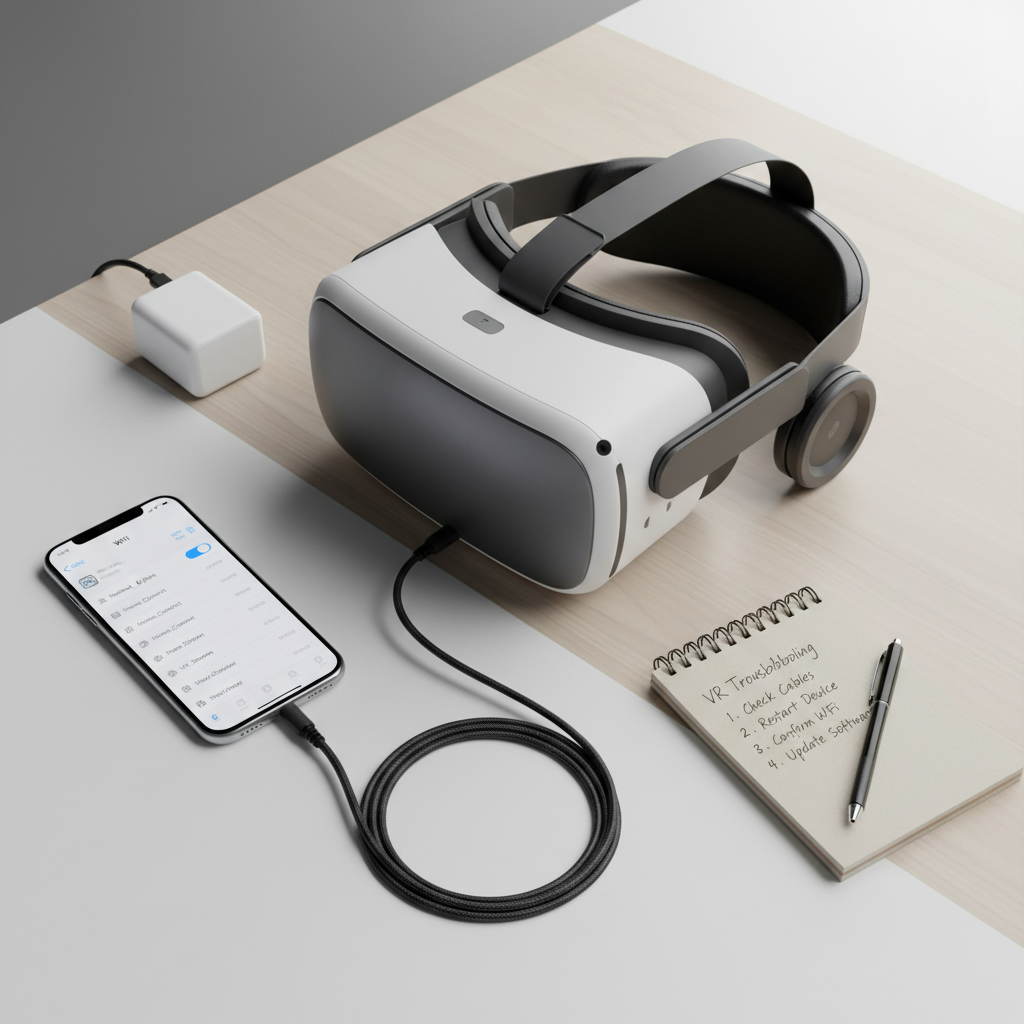
Fast reference table: symptoms and likely fixes
If you’re short on time, this table points you to the most likely move without overthinking it.
| What you see | Most likely cause | What to do next |
|---|---|---|
| “No update available” but others have it | Staged rollout, device not in current wave | Keep on Wi‑Fi overnight, check again in 24–72 hours |
| Download starts then stops | Unstable Wi‑Fi, sleep interruption | Use reliable network, keep plugged in, restart once |
| Install fails repeatedly | Low storage or corrupted cached package | Free space, reboot, retry; consider advanced help if persistent |
| Headset feels buggy after update | App cache conflicts, background processes | Restart, update apps, check for a follow-up hotfix |
| Update screen never loads | Account/network issue or system glitch | Confirm pairing, try different Wi‑Fi, contact support if it continues |
Key points to keep in mind (so you don’t fight the process)
- Don’t chase the rollout: many updates arrive in waves, refreshing every hour rarely helps.
- Power + patience beats button mashing: charging on Wi‑Fi while idle is often the “real” update mode.
- Updates aren’t only firmware: app updates in the store can also fix crashes you blame on system software.
- One change at a time: if you swap Wi‑Fi, delete apps, and reset settings all at once, you won’t know what worked.
If you’re documenting a stubborn issue, note the version number, the exact error text, and what network you used, that shortens support back-and-forth later.
When to seek help (and what to prepare)
If you’ve tried the standard update path, restarted, confirmed Wi‑Fi stability, and the headset still won’t update after a few days, it may be time to ask for help. According to Meta, official support channels can guide device-specific steps, especially when a headset shows persistent update errors.
- Contact Meta Support if you see repeated install failures with the same error, or the headset can’t complete updates across multiple networks.
- Consider retailer/warranty options if the device reboots unexpectedly during installs or cannot maintain a charge, hardware issues can look like software problems.
- Avoid risky “unofficial tools” unless you truly understand what they do, they can create extra variables and may affect warranty coverage.
For most people, the reliable path is still simple: check once, plug in, leave it on Wi‑Fi, and let the system do its thing.
Conclusion: a simple routine that keeps Quest 3 updates painless
If you’re revisiting how to update meta quest 3 software, treat it like maintenance, not a one-time project: keep a few GB free, charge overnight on a stable network, and do a manual check only when something feels off or an app requires it.
Action steps that usually pay off: tonight, plug in your headset on your most reliable Wi‑Fi and let it idle for a while, tomorrow, restart once and verify the software update screen. If it keeps failing after multiple tries, gather the version info and reach out to Meta Support.
FAQ
Why doesn’t my Meta Quest 3 show the latest update yet?
Many updates roll out in stages, so two devices can be on different versions for a bit. Waiting a day or two while staying on Wi‑Fi and charging often works better than constant manual refreshes.
Can I force an update immediately?
Sometimes you can trigger it by rebooting and checking the software update page, but there’s not always a true “force now” option. If your headset is healthy, it typically receives the update when your rollout wave arrives.
What battery level is safe for installing updates?
A higher charge reduces the chance the device pauses mid-install, which can cause delays. Many people aim for 50% or just leave it plugged in until the process finishes.
Will updating delete my games or save data?
Normal system updates generally keep your installed content intact. If you’re considering more advanced recovery steps, check what those steps do first, because resets can remove local data unless it’s backed up.
My update downloads but won’t install, what’s the most common reason?
Low free storage and interrupted installs are common culprits. Freeing space and giving the headset uninterrupted time on charger is usually the first practical fix.
Should I update apps in the Meta Quest Store too?
Yes, many stability issues come from app versions rather than system software. If you updated the headset OS but a specific game still crashes, app updates are worth checking right away.
Is it normal for the headset to feel different after an update?
Small behavior changes can happen, especially around tracking, UI layout, or power management. If something feels worse for more than a day or two, restart and check for a follow-up hotfix before assuming it’s permanent.
If you’re trying to keep a Quest 3 fleet stable at home, for a classroom, or even just for one headset you share with family, a lightweight routine helps: schedule charging time on reliable Wi‑Fi, keep storage from hitting the red, and only troubleshoot deeply when the same error repeats.