
how to optimize pc for gaming 2026 usually comes down to one thing: removing the small bottlenecks that turn “good hardware” into choppy frame times, random stutters, and inconsistent input feel.
If your PC feels fine on the desktop but games hitch when a fight starts, or your FPS looks high while motion still feels “off,” you’re not alone. In 2026, Windows gaming performance is as much about software hygiene, driver strategy, and storage behavior as it is about the GPU.
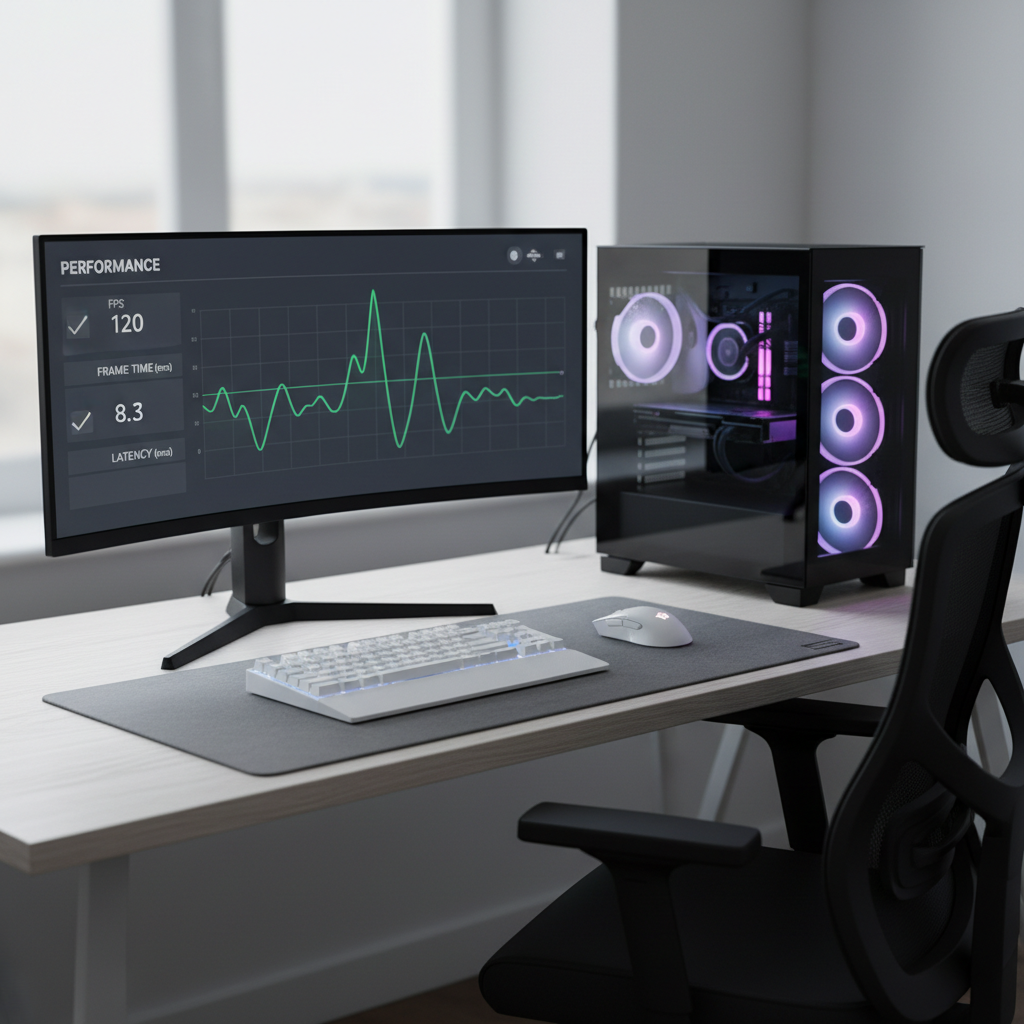
This guide focuses on changes that typically show real results: stabilizing frame time, trimming background overhead, keeping drivers sane, and choosing upgrades that actually match your bottleneck. You’ll also get a quick self-check list and a practical “do this first” order.
What “optimized for gaming” really means in 2026
Most people chase average FPS, but the feel of a game often depends more on frame time consistency, latency, and avoiding background interruptions. A PC can average 120 FPS and still feel jittery if frame times spike.
In practice, optimization is about making Windows predictable under load: fewer background tasks waking up, stable GPU clocks, consistent storage access, and sane power behavior.
Fast self-check: what kind of problem are you dealing with?
Before changing ten settings, narrow the issue. Pick the closest match.
- High FPS but still feels stuttery: likely frame time spikes, overlays, background capture, shader compilation, or storage hiccups.
- FPS drops over time: often thermals, power limits, or a driver/settings regression after an update.
- Input feels delayed: display mode, V-Sync chain, wrong refresh rate, wireless interference, or system latency settings.
- Only one game runs badly: game-side settings, shader cache, corrupted config, or anti-cheat conflicts.
- New GPU but no big gain: CPU bottleneck at 1080p/competitive settings, or RAM/PCIe/BIOS constraints.
Windows settings that matter (and the ones people overrate)
Windows has a few toggles that can help, but they’re not magic. Start with these because they’re low-risk and easy to revert.
Core Windows toggles to review
- Game Mode: usually worth keeping on. It tends to reduce background scheduling interference during play.
- Xbox Game Bar / Captures: if you don’t use them, turn off background recording. Background capture can cost performance or add stutter on some systems.
- Startup apps: disable non-essential launchers, updaters, “helpers,” and RGB utilities you don’t need.
- Notifications / Focus: silence pop-ups during full-screen gaming, not for FPS, but for sanity.
Power and display basics (easy to miss)
- Refresh rate: confirm Windows is actually set to your monitor’s max refresh rate.
- Power mode: use a performance-oriented plan when plugged in. On laptops, balanced plans can throttle in ways that feel like “random” drops.
- VRR (Variable Refresh Rate): if your display supports it, enable VRR/G-SYNC/FreeSync properly and test with your typical games.
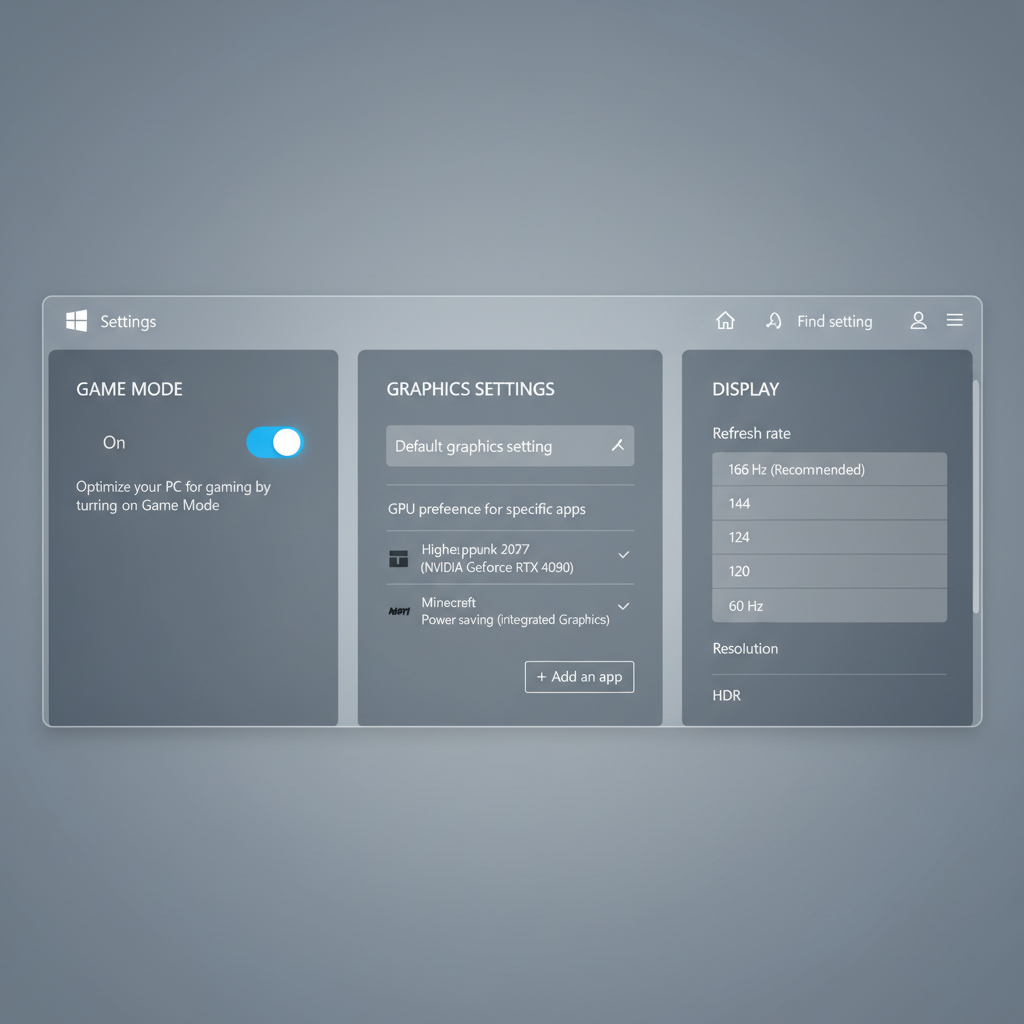
Settings people tend to overrate: “registry boost packs,” random “debloat scripts” from unknown sources, and aggressive service disabling. Those can create weird side effects like broken updates, unstable anti-cheat behavior, or audio/network issues.
Driver, BIOS, and updates: stay current, but not reckless
In 2026, driver strategy is basically “update with intent.” New GPU drivers can fix big game issues, but they can also introduce new ones, especially around overlays and frame pacing.
According to Microsoft, keeping Windows updated helps maintain security and reliability, and reliability matters when anti-cheat and kernel-level components are involved.
Recommended update approach
- GPU driver: update when you need a game-ready fix, a known bug is addressed, or you’re troubleshooting. If your system is stable, you can skip a release.
- Chipset driver: keep reasonably current, especially after major Windows updates or CPU platform updates.
- BIOS/UEFI: update only if it fixes stability, memory compatibility, security issues, or performance problems you actually have. Follow the board vendor’s instructions closely.
One troubleshooting trick that actually works
If performance tanked after an update, roll back in a controlled way: note your current versions, revert one layer at a time (GPU driver first is common), and retest the same in-game scene. That beats changing five things and hoping.
Graphics settings that improve performance without ruining the game
This is where most time gets wasted. The goal is not “lowest settings,” it’s stable frame time at the refresh rate you care about.
Quick wins by setting type
- Big FPS hitters: resolution, render scale, ray tracing, path tracing, heavy global illumination settings.
- Stutter/VRAM pressure: texture quality, texture streaming budgets, ultra HD packs on mid-range GPUs.
- CPU-bound settings: crowd density, simulation quality, view distance in open-world games.
- Latency chain: V-Sync, frame caps, reflex/anti-lag features, full-screen vs borderless behavior.
A practical “competitive” baseline (adjust from here)
- Use your monitor’s native resolution when possible, then scale down if needed.
- Cap FPS slightly below max refresh if you use VRR, many setups feel smoother with a small headroom.
- Keep textures as high as your VRAM can handle without paging, then reduce shadows/reflections before nuking textures.
Storage, RAM, and background apps: the hidden stutter sources
A lot of “my GPU is strong but it stutters” reports end up being storage spikes, memory pressure, or background scans at the wrong time.
What to check on storage
- Install games on SSD/NVMe: modern titles stream assets constantly, HDDs often struggle with consistency.
- Leave free space: very full drives can slow down and cause update/install weirdness.
- Disable unnecessary third-party disk tools: some “optimizer” apps create more problems than they solve.
RAM and paging symptoms
- If you see stutters when entering new areas, alt-tabbing, or after long play sessions, watch for memory usage spikes.
- Too many background apps can push the system into paging, which feels like hitching even at high FPS.
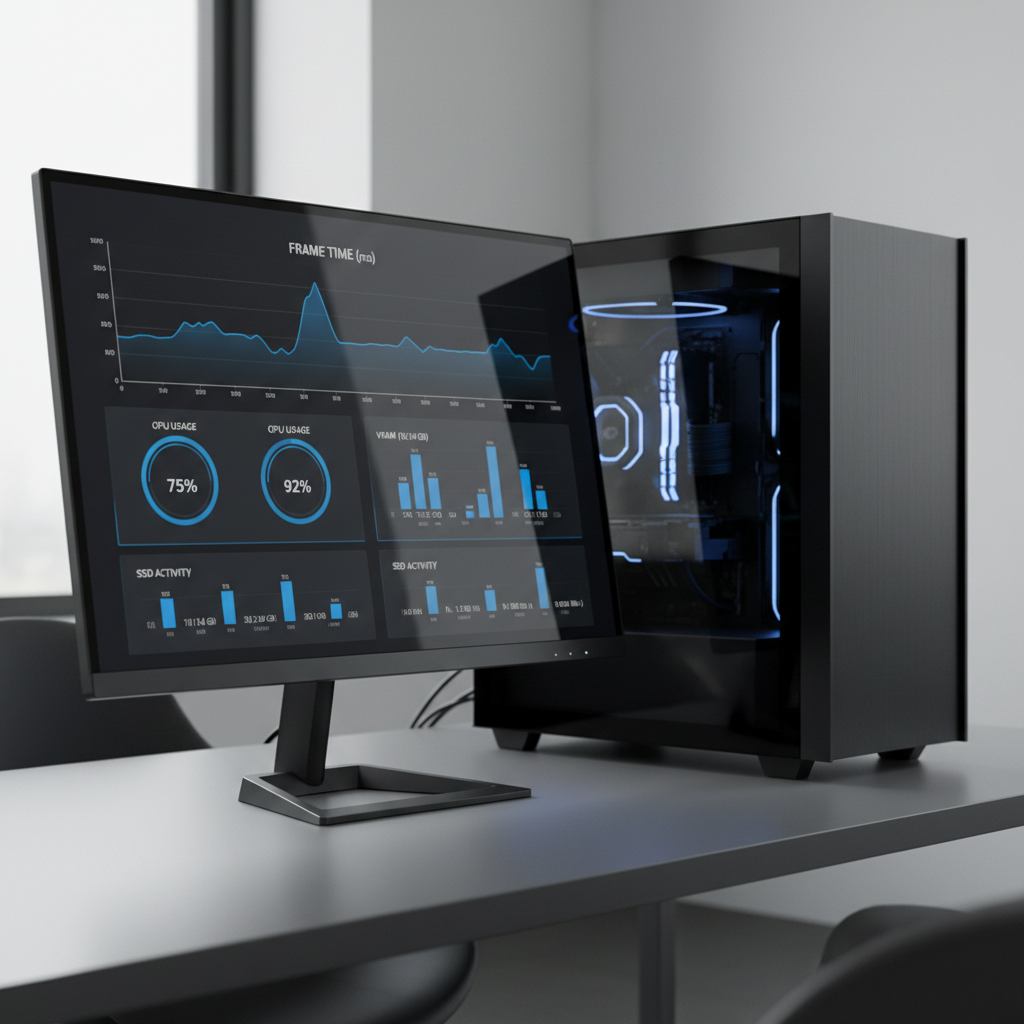
Optimization priorities by your symptom (use this table)
If you want the shortest path, match your symptom to the most likely fixes. This keeps your “how to optimize pc for gaming 2026” checklist from turning into a weekend project.
| Symptom | Most common causes | What to try first |
|---|---|---|
| Micro-stutter with high FPS | Background capture/overlays, shader cache, storage spikes | Disable background recording, trim overlays, move game to SSD, rebuild shader cache if game supports |
| FPS drops after 10–30 minutes | Thermal throttling, power limits, driver instability | Check temps/clocks, clean airflow, verify laptop plugged-in mode, consider driver rollback |
| Input lag feels “heavy” | V-Sync chain, wrong refresh rate, borderless behavior | Confirm refresh rate, test exclusive full-screen, tune VRR + frame cap strategy |
| New GPU, small gains | CPU bottleneck, slow RAM, low resolution competitive settings | Raise resolution/settings slightly, check CPU usage per core, enable XMP/EXPO if stable |
| Random hitching during autosaves | Disk contention, antivirus scans, cloud sync | Exclude game folder from scans where appropriate, pause cloud sync while gaming |
Step-by-step: a clean, repeatable tune-up (30–60 minutes)
This is the order that tends to minimize “placebo tweaks.” Make one change, test, then keep or revert.
- Pick one benchmark scene: same map/area, same camera path, same settings.
- Update only what you need: Windows updates, then GPU driver if you’re chasing a specific fix.
- Disable background recording: keep overlays minimal, especially multiple overlays stacked.
- Confirm display pipeline: correct refresh rate, VRR on if supported, and test your V-Sync/frame cap combo.
- Optimize in-game settings: drop the big hitters first, avoid turning textures too high for your VRAM.
- Verify storage and free space: move the main problem game to SSD/NVMe and keep headroom.
- Check thermals: watch CPU/GPU clocks under load; if clocks fall while temps climb, fix cooling/airflow.
Common mistakes that waste time (or make things worse)
- Installing “one-click optimizer” apps: they often change power plans, services, and registry values without clarity.
- Disabling security features blindly: it can create real risk, and it may break game launchers or anti-cheat.
- Chasing ultra-low latency at any cost: some settings reduce latency but cause tearing or frame pacing issues, test with your eyes, not just a checklist.
- Changing five variables at once: you lose the ability to learn what helped.
According to NVIDIA, features like driver-level low-latency options and VRR-related settings can interact with your frame cap and V-Sync choices, so small changes deserve a quick A/B test rather than assumptions.
When it’s worth getting professional help (or at least a second opinion)
If you suspect hardware instability, professional diagnostics can save time. Repeated crashes under load, sudden shutdowns, burning smells, or visible artifacting can point to power delivery, overheating, or failing components, and guessing can make it worse.
For laptops, opening the chassis or repasting thermal material can carry risk and may affect warranty terms, so it’s usually smarter to check the manufacturer’s guidance or ask a qualified technician.
Key takeaways you can act on today
- Chase frame time consistency, not only average FPS.
- Turn off background capture if you don’t use it, and keep overlays lean.
- Update drivers with intent, and roll back methodically if a new release causes issues.
- SSD/NVMe + free space solves more “mystery stutter” than people expect.
If you want a simple next move: pick the one game that bothers you most, run a repeatable test scene, and apply the step-by-step tune-up in order. That’s the fastest way to make how to optimize pc for gaming 2026 feel concrete instead of endless.
FAQ
How do I optimize a Windows PC for gaming without reinstalling Windows?
Start with reversible changes: disable background recording, reduce startup apps, confirm refresh rate, and tune in-game settings for stable frame time. A reinstall can help in extreme cases, but many systems improve without it.
Should I use Game Mode in 2026?
In many setups, yes. It’s not a massive FPS boost, but it can reduce background interference. If you notice worse behavior in a specific title, toggle it off and retest that game.
Do “debloat” scripts help gaming performance?
Sometimes they remove annoyances, but they can also break updates, drivers, or anti-cheat components. If you try one, understand every change and keep a rollback plan.
What’s better for smoothness: higher FPS or stable frame time?
Stable frame time usually feels better. A slightly lower but consistent FPS often beats a higher average with spikes and hitching, especially in competitive games.
How do I know if I’m CPU-bottlenecked or GPU-bottlenecked?
If lowering resolution doesn’t improve FPS much, you may be CPU-limited. If lowering graphics settings and resolution clearly raises FPS, you’re more likely GPU-limited. Monitoring per-core CPU usage and GPU utilization helps confirm.
Is it safe to overclock to get better gaming performance?
It can help, but stability and thermals matter more than small gains. Overclocking may cause crashes or shorten component lifespan in some cases, so proceed cautiously and consider professional guidance if you’re unsure.
What upgrades matter most for gaming in 2026?
It depends on your bottleneck. Often the biggest jumps come from a stronger GPU, moving games to NVMe storage, or upgrading RAM capacity if you’re hitting memory limits. CPU upgrades pay off most for high-FPS competitive settings.
If you’re optimizing one PC for multiple games and want a more “set it and forget it” approach, it may help to share your specs, target FPS, monitor model, and the two or three games you play most, then build a small, repeatable checklist around that instead of chasing every tweak.